What Is Microsoft Intune? A Plain-English Guide for Small Business Owners

What is Microsoft Intune — device management guide for small business

You did the right things. You set up Conditional Access policies in Microsoft 365, you pushed your team to stronger authentication, and then you hit a wall: Policy #4 requires a device that is enrolled in Intune and marked compliant. Intune. What is Microsoft Intune, exactly — and do you already have it?

If you’re running Microsoft 365 Business Premium, the short answer is yes, you already own it. The longer answer is what this post is for. By the time you finish reading, you’ll know what Intune actually does, how it fits into the security stack you’re building, and what it would take to turn it on.


Wait — Didn’t Microsoft Change the Name?

Yes, and it caused an enormous amount of unnecessary confusion. Here’s the quick history:

  • For years, the product was called Microsoft Intune — a standalone mobile device management (MDM) tool.
  • Around 2020, Microsoft bundled Intune with other management tools and renamed the whole package Microsoft Endpoint Manager.
  • In 2023, Microsoft reversed course and brought the Intune name back. The admin portal, the documentation, and the licensing all went back to calling it Intune.
  • They also introduced Intune Plan 1 and Intune Plan 2 tiers — Plan 1 being the standard version most businesses need, Plan 2 being an advanced add-on.

So if you’ve seen “Endpoint Manager” and “Intune” used interchangeably in articles, that’s why. For the purposes of this post — and for the purposes of your Microsoft 365 Business Premium subscription — they’re the same thing. You have Intune Plan 1, and you’re probably not using it.


What Is Microsoft Intune, Really?

Intune is Microsoft’s cloud-based platform for managing and securing the devices that connect to your business. Laptops, desktops, iPhones, Android phones, tablets — if it touches your email, your files, or your Teams account, Intune can manage it.

“Manage a device” sounds abstract, so here’s what it means in practice: Intune lets you push security settings to devices remotely, check whether those devices are meeting your requirements, and take action — including wiping a device — if something goes wrong.

Microsoft’s official Intune documentation lives on Microsoft Learn

There are two main ways Intune works with devices:

  • Full device management (MDM) — The device is fully enrolled in Intune. This is typical for company-owned laptops and phones. Intune can control almost any setting on the device.
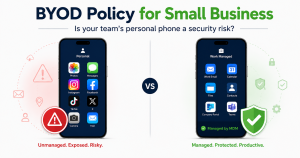
  • App-only management (MAM) — Intune manages only your company apps on the device, not the device itself. This is the right approach for personal phones where employees check work email — Intune protects your data in the Outlook and Teams apps without touching the employee’s personal photos, messages, or apps.

Here’s the analogy that makes this click for most people: if your Conditional Access policies are the bouncer checking IDs at the door, Intune is the system that issues the IDs in the first place — and revokes them when someone leaves.


What Does Intune Actually Do for a Small Business?

Device Enrollment and Compliance

Before Intune can manage a device, that device has to be enrolled — essentially registered with your Microsoft 365 tenant so Intune knows it exists. Enrollment can happen a few different ways:

  • User-initiated: The employee opens the Company Portal app or goes through a setup wizard. Takes about 10 minutes.
  • Windows Autopilot: New laptops ship directly from the vendor and self-configure when the employee first powers them on. Zero IT hands-on-keyboard required. (More on this in a future post.)

Once enrolled, Intune continuously checks whether the device meets your compliance policies. A compliant device might need to have BitLocker encryption turned on, be running a current version of Windows, and have a PIN or password set. If a device passes all those checks, Intune marks it compliant.

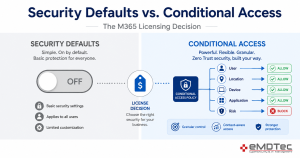
This is the direct connection to your Conditional Access setup. Conditional Access Policy #4 — the one that blocks access from unmanaged devices — can only work if Intune is telling it which devices are compliant. Without Intune in the picture, that policy has nothing to check against.

Security Policy Enforcement

One of the most valuable things Intune does for a small business is replace the honor system. Right now, you probably have a policy that says employees should keep their laptops updated and encrypted. Intune lets you stop hoping and start enforcing.

Examples of what Intune can enforce automatically across your device fleet:

  • Require BitLocker disk encryption on all Windows laptops
  • Force Windows Update to install within a set number of days
  • Require a minimum PIN or password length to unlock the device
  • Block access to USB drives or external storage
  • Require antivirus to be active and up to date
  • Prevent screen sharing of company data on personal apps

These aren’t things you have to configure on each device one at a time. You set the policy once in the Intune admin portal, and it applies to every enrolled device — now and whenever a new device is added.

Remote Wipe and Data Protection

Two scenarios keep small business owners up at night: a lost laptop and a disgruntled employee walking out the door. Intune addresses both.

If a company-owned laptop goes missing, you can issue a full wipe from the Intune admin portal — it remotely resets the device to factory settings, wiping everything on it. If you just want to remove company data but leave the device usable (for example, if an employee bought their own laptop and is leaving on good terms), you can issue a selective wipe that removes only company accounts, email, and files.

For personal phones managed through MAM, the selective wipe is even more precise: it removes your company data from the Outlook and Teams apps without touching the employee’s personal content. Their photos, texts, and personal apps are completely untouched.


Is Microsoft Intune Included in My Microsoft 365 Plan?

This is where a lot of business owners are surprised. Here’s the straightforward breakdown:

  • Microsoft 365 Business Premium: Includes Intune Plan 1. You already own it.
  • Microsoft 365 Business Basic or Business Standard: Does not include Intune. You’d need to add it separately or upgrade your plan.
  • Microsoft 365 E3 / E5 (enterprise plans): Intune Plan 1 included; Plan 2 available as an add-on.

Intune Plan 2 adds advanced features like endpoint privilege management and specialized certificate management. Most small businesses won’t need Plan 2 — Plan 1 covers the full device enrollment, compliance, and policy enforcement described in this post.

The key takeaway: if you’re paying for Business Premium and Intune isn’t configured, you’re leaving a paid security layer sitting idle. It’s not a new purchase — it’s a capability you’re already paying for.


How Does Intune Fit Into Your Broader Security Stack?

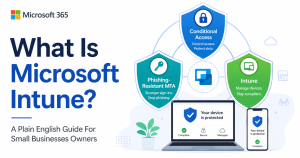
If you’ve been following this blog, you’ve seen us build out an identity-hardening framework piece by piece. Intune is the third leg of that framework:

  • Conditional Access — The policy engine. It decides who gets access to what, under which conditions.
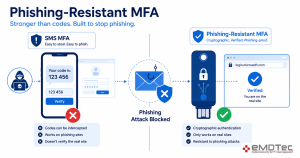
  • Phishing-Resistant MFA — The strongest form of user authentication. Confirms the person is who they say they are.
  • Intune — Device compliance. Confirms the device they’re using is safe and meets your standards.

Strong MFA alone isn’t enough. A user with a hardware security key authenticating from a laptop riddled with malware and no disk encryption is still a serious risk. Intune closes that gap by ensuring the device itself is trustworthy, not just the user.

This three-part framework is also the “device” pillar of Zero Trust architecture — the model we outlined in A Small Business Roadmap for Implementing Zero Trust. Zero Trust says never assume a connection is safe just because it came from inside your network or from a known user account. You verify the user and the device, every time. Intune is how you do the device half of that verification.

Intune also directly solves many of the items on The Essential Checklist for Securing Company Laptops at Home. Items like “ensure BitLocker is enabled,” “confirm OS updates are current,” and “verify antivirus is active” become things Intune enforces automatically — instead of things you check manually and hope for the best.


What About Personal Phones and BYOD?

This comes up in almost every conversation about Intune: my employees use their personal iPhones for work email — do I have to enroll their personal phones?

The short answer is no — not fully. Using Intune’s MAM-only mode, you can protect company data on a personal device without enrolling the device itself. Employees install the Outlook and Teams apps, sign in to their work account, and Intune applies policies to those specific apps — requiring a PIN to open them, preventing copy-paste of company data to personal apps, and enabling selective wipe of company data if needed. Their personal apps and data are never touched.

Whether to require full enrollment for personal devices, rely on MAM-only, or draw a firm BYOD line and require company-owned devices for work — that’s a bigger strategic question. It deserves its own post. We’ll cover it fully in the next piece in this series: “BYOD: Should You Let Employees Use Personal Phones for Work?”


How Do You Get Started With Intune?

If you’re on Business Premium and ready to actually turn Intune on, here’s the high-level path:

  1. Confirm your license. Log into the Microsoft 365 admin center and verify that Intune is included in your plan and that licenses are assigned to your users.
  2. Plan your enrollment approach. Decide whether you’re enrolling company-owned devices, personal devices (MAM-only), or both. This shapes everything that follows.
  3. Define your compliance policies. What does a “compliant” device look like for your business? Set the baseline — encryption required, OS version minimum, PIN required — before you start enrolling devices.
  4. Roll out to users. Start with a pilot group of 5–10 devices, confirm everything works, then expand. Communicate to employees what’s changing and why before you push anything.
  5. Connect Intune to Conditional Access. Once devices are enrolled and compliance policies are live, update your Conditional Access policies to require compliant devices. This is when the full framework clicks into place.

A small deployment — under 50 devices, all company-owned Windows laptops — can realistically be live within a few days once you know what you’re doing. The configuration itself isn’t the hard part. The hard part is making the right decisions upfront about policies, enrollment scope, and user communication.

If you’re on Business Premium and genuinely aren’t sure whether Intune is configured in your tenant — or you know it’s not and want to fix that — that’s exactly the kind of gap we help close. Reach out to schedule a discovery call and we’ll take a look at where you stand.