

 Manage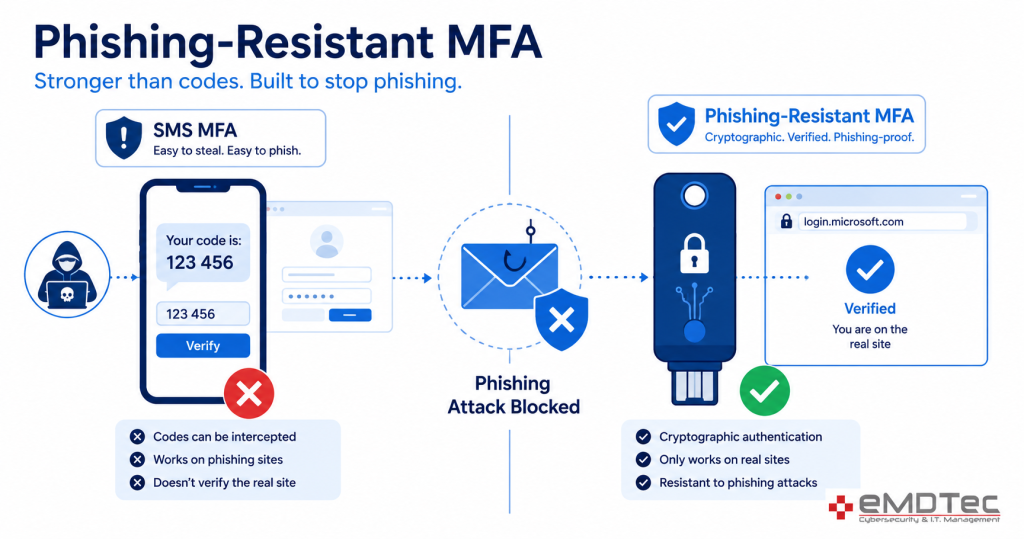

What Is Phishing-Resistant MFA and Why Every SMB Needs It
You’ve already deployed MFA across your organization—so why are you still worried about account compromises? The answer is simple: not all MFA is created equal. If your security plan still relies on SMS text messages or push notifications to authenticate users, you’re defending against yesterday’s attacks, not today’s. This post explains what phishing-resistant MFA actually is, why it matters for small businesses and healthcare providers, and how to implement it using Microsoft 365 in the next 30 days.
The Problem: SMS MFA Isn’t Enough Anymore
You’ve heard it before: “We have MFA, so we’re protected.” The problem is that SMS-based MFA—the most common type deployed in SMBs—adds friction for attackers, but it doesn’t reliably prove that the right person is signing in.
Here’s why SMS fails at scale:
SIM swap attacks. Attackers call a telecom company, socially engineer a representative, and redirect the target’s phone number to a device they control. Once they own the number, SMS codes flow directly to them. A skilled attacker can pull this off in minutes, and many telecom providers make it easier than it should be.
Code interception and social engineering. SMS codes can be captured through telecom infrastructure vulnerabilities or phishing pages that ask users to read back their code. (“We detected unusual activity. Enter the code you just received.”) Most users comply without thinking.
Push notification fatigue. If you use push approvals instead of SMS codes, attackers can send dozens of push notifications to the target’s phone until they accept one out of frustration or habit. This is called “push bombing,” and it works.
Microsoft’s own Secure Future Initiative guidance is explicit: SMS and email OTPs are “becoming less effective against today’s attackers.” For a healthcare provider, this is not a theoretical concern. A single compromised email account can expose patient records, trigger HIPAA breach notifications, and damage client trust permanently.
The message from Microsoft and CISA is clear: SMS still adds some protection, but it no longer counts as a durable control against phishing and account takeover in 2026.
Understanding Phishing-Resistant MFA
So what does “phishing-resistant” actually mean?
Phishing-resistant authentication relies on cryptographic proof tied to the legitimate service—not a code that can be stolen, intercepted, or socially engineered. When you sign in using a phishing-resistant method, your device proves to Microsoft that it’s communicating with the real login page, not a fake one. If an attacker creates a phishing page that looks identical to the real Microsoft login, the cryptographic check fails, and the attack stops cold.
This is fundamentally different from SMS. A text message is just a code—there’s no proof of where it came from or what it’s protecting. An attacker who gets the code wins.
Microsoft’s authentication framework has evolved to reflect this reality. The company now treats phishing-resistant methods—Windows Hello for Business, FIDO2 security keys, and Microsoft Authenticator passkeys—as the stronger options, while SMS and push notifications remain in the “weaker” category. For SMBs, the takeaway is important: phishing-resistant MFA is moving from “advanced security” to “baseline expectation,” especially for admins, remote access, and high-impact systems like email and finance.
Microsoft’s Phishing-Resistant MFA Options for SMBs
Microsoft Entra ID (formerly Azure AD) supports three main phishing-resistant authentication methods. Here’s how they compare for small businesses:
Windows Hello for Business
Windows Hello uses your device’s built-in biometric sensors (fingerprint, face) or a PIN to prove your identity. The credential never leaves your computer—it’s cryptographically bound to your device.
Pros:
- Built into modern Windows devices; no extra hardware to buy
- Seamless experience for employees who use company laptops
- Strong phishing resistance; cryptographic binding to the device prevents relay attacks
Cons:
- Requires modern Windows PCs (Windows 10 or later with TPM 2.0)
- Requires hybrid or cloud identity infrastructure (Entra joined or hybrid joined devices)
- Not portable—you can only sign in from configured devices
Best for: Organizations with standardized Windows device deployments and a mature IT infrastructure.
FIDO2 Security Keys and Passkeys
FIDO2 (Fast Identity Online 2) is an open standard for phishing-resistant authentication. It works via physical security keys (like a YubiKey or similar USB device) or cloud-based passkeys stored in a password manager.
Pros:
- Works on any device and operating system
- Highly resistant to phishing; the key is bound to the domain name, so it won’t work on a fake site
- Passkeys (cloud-based FIDO2 credentials) are becoming mainstream across tech
Cons:
- Physical keys require procurement and distribution costs
- User enrollment and support overhead (especially if users lose keys)
- Passkey adoption is still ramping; not all SMBs are ready
Best for: Organizations with bring-your-own-device (BYOD) policies or mixed-device environments, or those willing to invest in hardware security keys.
Microsoft Authenticator Passkeys
Microsoft Authenticator is an app you already have on your phone. Passkeys stored in the app are cryptographic credentials that prove your identity without sending a code. You approve the sign-in request on your phone using your device PIN or biometric.
Pros:
- Uses phones your employees already carry
- No new hardware to buy or manage
- Integrates seamlessly with Entra ID and Microsoft 365 apps
- Easier enrollment than security keys
- Much stronger than SMS or push notifications
Cons:
- Requires installation and enrollment of the Authenticator app
- If an employee loses their phone, recovery is slower than SMS fallback
Best for: Most SMBs. This is the fastest, easiest path to phishing-resistant MFA without disrupting workflows or requiring new infrastructure.
Our recommendation for SMBs: Start with Microsoft Authenticator Passkeys. It delivers the strongest protection without the infrastructure complexity of Windows Hello or the hardware costs of FIDO2 security keys.
How to Implement Phishing-Resistant MFA in Your SMB
Rolling out stronger MFA doesn’t require a “big bang” migration. In fact, a phased approach is more realistic for a small IT team.
Start With Your Highest-Risk Users
Begin with admin accounts and remote access. These are your highest-value targets for attackers. If an admin account is compromised, an attacker can move laterally through your entire network. After admins, prioritize finance and email-heavy users—these accounts are often targets for phishing and fraud.
A realistic timeline:
- Week 1-2: Pilot with IT staff and executives
- Week 3-4: Expand to finance and high-touch users
- Week 5-6: Broader rollout by department
- Ongoing: Keep SMS as a fallback for users with issues; phase it out once enrollment stabilizes
This gradual approach prevents overwhelming your helpdesk and gives you time to refine your support process.
Use Conditional Access Policies to Enforce It
Once users are enrolled in Authenticator Passkeys, use Conditional Access policies in Microsoft 365 to require phishing-resistant authentication for sensitive applications and users.
Example policy:
- Condition: User is an admin OR accessing Exchange Online or SharePoint
- Action: Require phishing-resistant MFA (Authenticator Passkey)
- Fallback: Allow SMS for non-admin users during a 30-day transition period
This ensures your most critical accounts are protected while you migrate everyone else.
Important: Avoid creating a permanent “SMS exception” for users who resist change. Set a clear deadline—say, 60 days—and phase out SMS entirely once support volume stabilizes. Otherwise, SMS becomes a backdoor that quietly undermines your security posture.
Break-Glass Accounts: Don’t Skip This
A break-glass account is a tightly controlled, rarely-used recovery account that can sign in if Entra ID or Conditional Access breaks. It should not depend on the same MFA path as everyday users.
For SMBs, the break-glass account should:
- Be a dedicated admin account (not shared)
- Require MFA using a method stored offline (e.g., printed recovery codes, not Authenticator)
- Be tested quarterly but used almost never
- Have all sign-ins logged and reviewed
The key lesson: don’t use “break-glass” as an excuse to keep SMS MFA active for “emergencies.” Real emergencies are rare. SMS becomes a permanent backdoor 99% of the time.
Why This Matters for Healthcare Providers
If you run a small healthcare practice or manage IT for multiple clinics, phishing-resistant MFA is no longer optional—it’s a competitive and compliance necessity.
Regulatory pressure is mounting. HIPAA itself doesn’t mandate “phishing-resistant” MFA by name, but state data breach notification laws and healthcare auditors increasingly expect it. If you suffer a breach and your security posture included only SMS MFA, expect regulators and clients to ask, “Why didn’t you deploy stronger controls?”
Patient trust is at stake. A single compromised email account can expose patient records for years without your knowledge. Once a breach is discovered, the notification, remediation, and reputation costs dwarf the cost of implementing proper MFA now.
Payers and insurers care. Larger health systems and payers are adding security requirements to their vendor management programs. Demonstrating phishing-resistant MFA in your environment signals that you take data protection seriously.
Implementing stronger MFA is also part of a broader “secure by design” posture—building security into your infrastructure from the start rather than bolting it on after a breach. Read our guide to Secure by Design practices for more on this approach.
And remember: stronger MFA is one foundational layer of a multi-layered defense. Learn about the other critical security layers your organization should deploy alongside it.
Getting Started—Your First 30 Days
Here’s a realistic roadmap:
Week 1: Audit your current MFA landscape. How many users have SMS? How many use Authenticator? Who has nothing? Identify your admin accounts and high-risk users.
Week 2-3: Deploy Microsoft Authenticator Passkeys to IT staff and executives. Work through the enrollment process yourself; you’ll learn what users will struggle with. Gather feedback and refine your support materials.
Week 4: Begin broader rollout to finance and email-heavy users. By now, you’ll have worked out the bugs. Set a clear deadline—60 days—for all users to enroll in Authenticator Passkeys.
Week 4+: Layer in Conditional Access policies that require phishing-resistant MFA for admin and sensitive app access. Keep SMS as a fallback for 30-60 days, then remove it.
Ongoing: Test your break-glass account quarterly. Document all break-glass sign-in attempts. Review and update your MFA policy annually as Microsoft’s authentication methods and threat landscape evolve.
The bottom line: SMS MFA is no longer a durable control for protecting high-value accounts. Phishing-resistant methods like Microsoft Authenticator Passkeys are now baseline, not premium. For SMBs and healthcare providers, the transition is straightforward, affordable, and achievable in weeks, not months. The cost of acting now is far smaller than the cost of a breach later.
Federal cybersecurity leaders agree this shift matters. The CISA guidance on phishing-resistant MFA explains why authentication tied to a specific device and origin is far harder for attackers to defeat than one-time codes.
Get Phishing-Resistant MFA in Place with eMDTec
You don’t have to roll out phishing-resistant MFA alone. Whether you’re a growing SMB or a healthcare practice with HIPAA obligations, eMDTec can plan, deploy, and support the right setup for your team. Schedule a free consultation, or call us at 973-295-5570.