

 Manage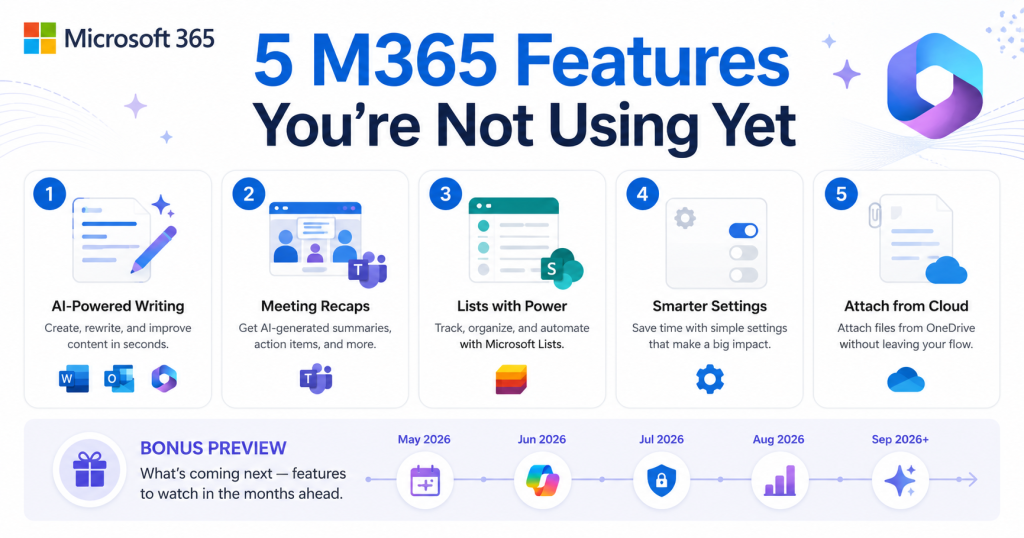
Most businesses use roughly 20% of what Microsoft 365 actually offers. Not because the other 80% isn’t useful — but because new features ship quietly, buried in update notes that nobody has time to read.
This month’s five tips are all available right now, most of them without any new licenses or setup required. And at the end, we’ll look at what Microsoft is shipping over the next 60 days so you’re not caught off guard.
Why Most M365 Users Only Scratch the Surface
Microsoft 365 is updated continuously — new features drop every week across Outlook, Teams, SharePoint, and Copilot. The challenge isn’t access. It’s awareness.
The tips below were selected because they deliver real time savings with almost no learning curve. If your team is already using M365, these are ready to use today.
Tip 1 — Claude Is Now Available Inside Microsoft Word
Here’s one that’s been making waves in the productivity community: Anthropic’s Claude AI is now available as a native add-in for Microsoft Word — and it works differently from Copilot in a way that’s worth understanding.
Where Copilot tends to rewrite and generate new text, Claude for Word proposes every single edit as a tracked change in Word’s native review panel. You see exactly what changed, exactly where — and you approve or reject it the same way you would a human collaborator’s markup. For document-heavy work like contracts, reports, client proposals, or policy documents, this approach is significantly more transparent.
Claude for Word installs as a sidebar add-in from the Microsoft AppSource marketplace and works on Windows, Mac, and web versions of Word. It’s available to paid Claude plan subscribers (Pro, Max, Team, and Enterprise). For Microsoft 365 Copilot users, Anthropic’s models are also now integrated into Copilot experiences across Word, Excel, and PowerPoint — enabled by default for most users, with an admin toggle for EU/UK tenants.
If you’re already using Copilot in Word and want to compare results, Claude offers a genuinely different writing style and a more granular editing workflow.
👉 Read the full story: Claude is now available in Microsoft Word
Tip 2 — Let Copilot Recap Your Teams Meetings
You just sat through a 45-minute meeting. Before you close Teams, click the Copilot button in the meeting recap.
Copilot will generate:
- A concise AI summary of the meeting
- Key decisions that were made
- Follow-up tasks and who owns them
No rewatching. No hunting through a transcript for action items. This works for any Teams meeting where transcription or recording was enabled — and pairs naturally with the new Transcription-only mode that shipped this month (covered in our May 2026 Microsoft 365 update roundup).
For managers, practice administrators, or anyone who runs recurring team check-ins, the meeting recap feature alone is worth the few seconds it takes to enable transcription by default.
Tip 3 — Microsoft Lists Can Now Feed Your Copilot Agent
If your team uses Microsoft Lists to track anything — patient contacts, vendor information, project status, equipment inventory — those lists can now serve as a knowledge source for custom Copilot agents.
What that means in practice: instead of answering “what’s the status of the Smith account?” by opening a list, filtering, and reading, a Copilot agent backed by that list can surface the answer directly in a chat response.
This is especially useful for medical practices and small businesses that already track operational data in Lists but don’t have the bandwidth to build complex integrations. The data is already there — connecting it to Copilot is the only additional step.
To enable this, a Microsoft 365 Copilot license is required. Setup involves creating or editing a Copilot agent in Copilot Studio and pointing it at the relevant list as a knowledge source.
Tip 4 — Set a Default Tone in Copilot — Once
This one takes about 30 seconds and most users have never done it.
In Copilot settings, you can set a preferred response tone: formal, concise, or friendly. Once set, every Copilot response — in Outlook, Word, Teams, or Chat — will automatically match that style. You don’t have to include tone instructions in every prompt.
For client-facing staff who draft a lot of emails or documents, this is a low-effort consistency upgrade. Set it to “formal” for a law firm, “friendly” for a patient-facing practice, or “concise” for a team that values brevity.
Tip 5 — Attach Files Directly to Copilot Prompts
Copilot Chat supports file attachments — and most users don’t know it.
Attach a contract, a meeting summary, a vendor proposal, or a set of notes, then ask Copilot to:
- Summarize the key points
- Extract action items or deadlines
- Draft a response or follow-up based on the content
- Compare two versions of a document
This removes the copy-paste step that makes AI tools feel clunky. The document stays in context for the entire conversation, so you can ask multiple follow-up questions without re-uploading.
Practical examples for eMDTec clients:
- Attach a vendor quote and ask Copilot to pull out the line items, terms, and renewal dates
- Attach meeting notes and ask it to draft a follow-up email to the attendees
- Attach a signed agreement and ask it to flag any clauses that need attention before renewal
What Microsoft Is Shipping Next — A 60-Day Preview
Here’s what’s confirmed and coming over the next two months:
Multiple managed accounts in Teams and Outlook (June–July)
Sign in with multiple managed accounts simultaneously, each with its own protection policy. Useful for anyone who manages more than one M365 identity — consultants, practice managers with multiple entity logins, or staff with shared admin accounts.
Recap sharing for Copilot meetings (June — requires Copilot license)
Meeting organizers will be able to share recordings, transcripts, and AI summaries via a single recap link. No more forwarding three separate files.
M365 update channel simplification (July 14)
The Semi-Annual and Monthly Enterprise update channels are merging into one. If your organization is on either of these channels, your IT provider should review this change before the July date to avoid any unexpected update behavior.
Whiteboards moving to SharePoint storage
Microsoft Whiteboards will move to SharePoint for storage, gaining improved data loss prevention (DLP) and sensitivity label support. Better for compliance, and keeps whiteboard content under the same governance policies as your other SharePoint files.
Windows 365 Business pricing reduced 20% — as of May 1st
If you’ve been evaluating Windows 365 Business (Microsoft’s cloud PC product) and the price was a sticking point, this is worth revisiting. A 20% reduction is meaningful for multi-seat deployments.
Stay Ahead of Every M365 Update
Microsoft ships updates continuously — and most of them never make it to your inbox in a form that’s actually useful. Every month, we filter the release notes down to what matters for small businesses and medical practices, and send it in plain English.
Subscribe to the eMDTec Microsoft 365 Monthly Newsletter →
Or if you’d rather talk through any of this month’s updates and what they mean for your specific setup:
Book a Microsoft 365 Review with eMDTec →