

 Manage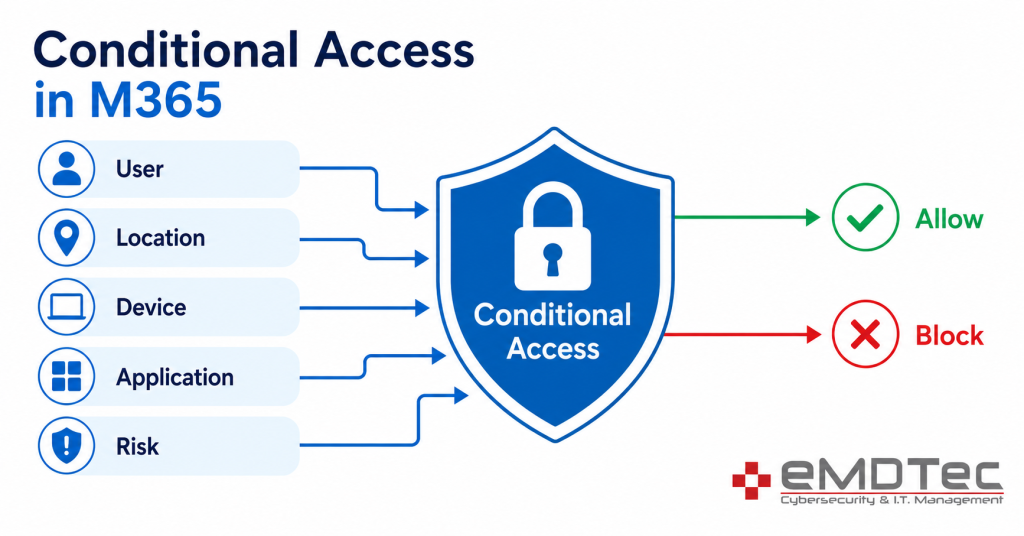
If you’ve worked through any Microsoft 365 security checklist in the past two years, you’ve hit a bullet that says “configure conditional access policies” and kept scrolling. We don’t blame you. Microsoft’s documentation on this is dense, the Entra portal is intimidating, and most security guides treat it like you already know what it is.
Here’s the part nobody puts up front: Microsoft has published that 99.9% of compromised accounts did not have strong identity protections — including conditional access — turned on. Not in some abstract sense. Ninety-nine point nine percent of the breaches Microsoft sees in its own customer base.
This post is the explainer we wish existed when clients ask us what conditional access M365 actually does. By the end, you’ll know what it is, the five policies every business should turn on first, what it doesn’t cover, and whether your current Microsoft 365 license even includes it.
What Conditional Access Actually Is (in Plain English)
Think of conditional access as the bouncer standing between the front door and the actual party.
Your username and password get you to the door. Multifactor authentication makes you prove the door is yours. But conditional access is the bouncer who looks at who you are, where you came from, what you’re carrying, and whether anything looks off — and decides whether you actually walk in, walk in with extra checks, or get turned away entirely.
Technically, conditional access lives inside Microsoft Entra ID (the service formerly known as Azure Active Directory). It is the policy engine that sits between every sign-in attempt and every Microsoft 365 application — Outlook, Teams, SharePoint, OneDrive, the admin portals, all of it. Every time a user signs in, conditional access evaluates the request against the policies you’ve defined and decides what happens next.
Here’s the distinction that matters. MFA tells you what a user has to prove. Conditional access tells you when, where, and under what circumstances they have to prove it — and whether they should be allowed in at all even if they could prove it.
That’s why turning on MFA without conditional access is like installing a deadbolt and leaving every other door unlocked. You’ve made one entry point harder, but you haven’t told the system how to think about the rest. Conditional access is also the enforcement layer for the identity step in any real Zero Trust implementation — it’s the mechanism that makes “verify explicitly” actually mean something.
How Conditional Access Works — The “If/Then” Signals
Every conditional access policy is built the same way: a set of conditions (“if this”) and a set of controls (“then do this”).
The “if” side is built from five signals that Entra ID evaluates on every single sign-in:
- User or group: Who is signing in? An individual, a group, a role like Global Admin, or all users.
- Location: Where is the request coming from? IP address, named location, or country.
- Device: Is the device managed by your company, marked as compliant in Intune, or completely unknown?
- Application: Is the user trying to reach Outlook, SharePoint, the Azure portal, or a specific third-party app?
- Real-time risk: Has Microsoft’s identity protection engine flagged this sign-in as risky right now? Impossible travel, anonymous IP, leaked credentials, unfamiliar location patterns.
The “then” side is the decision the policy enforces:
- Allow access with no friction
- Block access entirely
- Require multifactor authentication
- Require a compliant or hybrid-joined device
- Require a password change before continuing
- Apply session controls (limit downloads, limit copy-paste, force web-only access)
A concrete example. Say you have a finance manager named Sarah. A reasonable policy looks like this: If Sarah signs in from outside the United States, on an unmanaged device, trying to reach SharePoint, then block the sign-in. Same Sarah from her corporate laptop in the office? Allowed, no prompts, no friction.
Compare that to the old approach — “everyone uses MFA, all the time.” That’s a static rule. Conditional access is dynamic. It adapts to context, so the prompts only show up when they should, and the blocks only fire on requests that genuinely look wrong.
The 5 Conditional Access Policies Every M365 Business Should Turn On First
We deploy these five policies in some form for nearly every client running Microsoft 365 Business Premium. They are the highest-impact, lowest-disruption controls available, and they cover the threat models that actually hit small businesses.
1. Block Legacy Authentication
Legacy authentication is the catch-all term for old protocols (POP, IMAP, SMTP AUTH, basic auth in Exchange) that don’t support MFA at all. It’s the number-one method credential-stuffing attacks use to reach accounts because it’s the one place MFA can’t protect you.
Block it. The policy takes ten minutes to configure, and unless you have a fax-to-email box from 2011 still hanging around, nothing will break. This is the single biggest security uplift available for the smallest amount of work.
2. Require MFA for All Users — With Trusted Locations
The baseline policy. Every user, every cloud app, MFA required.
The right way to deploy this is with named locations — your office IP ranges marked as trusted — so users in the office don’t get prompted on every sign-in. Outside those locations, MFA prompts every time. This is also why we tell clients not to run a consumer VPN on their work laptops: it makes every sign-in look like it’s coming from a different country, which trips risk signals and creates a flood of unnecessary prompts.
3. Block Sign-ins from Unsupported Countries
If your business operates in the US and Canada, there is no reason a sign-in attempt from Russia, North Korea, or Iran should ever be allowed to proceed. Block it at the identity layer.
This is far more effective than blocking at the firewall, because cloud applications don’t sit behind your firewall. The conditional access geo-block catches the attempt at the front door of Microsoft 365 itself.
4. Require Compliant Devices for Admin Roles
Global Admins, Exchange Admins, Billing Admins, and SharePoint Admins are the highest-value targets in any tenant. A single compromised admin account is how most ransomware events escalate from “one user got phished” to “the entire company is down.”
The fix: require those roles to sign in only from a device that is enrolled in Intune and marked compliant. Combined with phishing-resistant MFA (FIDO2 keys or Windows Hello for Business), this is one of the most effective controls in our ransomware defense playbook.
5. Block High-Risk Sign-ins Automatically
Microsoft’s identity protection engine is constantly scoring sign-in attempts against indicators of compromise — impossible travel, anonymous IP networks, sign-ins matching leaked credential databases.
The policy: if real-time risk is “high,” block the sign-in. If it’s “medium,” require MFA and a password change. This is the policy that catches breaches in flight, often hours before the user or the help desk would notice.
What Conditional Access Does NOT Do
Conditional access is powerful, but it has a defined scope. It is not the entire security stack, and treating it that way is how clients end up surprised.
What it does not cover:
- It does not protect a session that’s already authenticated. Once a user is in, conditional access isn’t watching what they do inside Outlook or SharePoint. That’s a different layer — Microsoft Defender for Cloud Apps, or Microsoft Defender for Endpoint.
- It does not stop malicious behavior inside an app. A legitimate user clicking a phishing link inside their authenticated Outlook session is not a CA event. Email security and endpoint protection handle that.
- It does not replace endpoint security, email filtering, or backup. Conditional access is identity-layer defense. You still need the other layers.
- It does not protect non-Microsoft SaaS unless that app is federated to Entra ID for sign-on. If your team logs into a third-party tool with a separate username and password, conditional access never sees that sign-in.
“We have CA, so we’re fine” is the wrong conclusion. It is necessary, not sufficient.
Where It Breaks Real Workflows (And How We Handle It)
We won’t pretend conditional access is plug-and-play. There are predictable places it interferes with legitimate work, and you should know about them before you flip the switch.
The common ones:
- Shared mailboxes that authenticate via legacy protocols — these break the moment legacy auth is blocked. Migrate to delegated access through Outlook.
- Multifunction printers and scanners sending email through SMTP AUTH — these need a dedicated authenticated SMTP submission setup, or they need to switch to a relay service.
- Travel — a strict geo-block will lock out a salesperson on a London trip if you didn’t think about it. Build an exception process: temporary group membership that opens up access for the trip duration, then expires.
- The break-glass account — every tenant needs one or two cloud-only admin accounts that are exempted from every conditional access policy. If you don’t have these and you misconfigure a policy, you can lock yourself out of your own tenant. We’ve cleaned up that mess for new clients more than once.
Our deployment standard: every new policy goes into report-only mode first. Two weeks of observation. Then we enforce, with eyes on the sign-in logs.
Do You Need Business Premium, or Will Standard Cover It?
This is the licensing question that catches most businesses off guard.
Conditional access — the real, configurable, policy-driven version — requires Microsoft Entra ID P1, which is included in Microsoft 365 Business Premium ($22 per user per month) and Microsoft 365 E3 and above. It is not included in Business Basic or Business Standard.
What you get on Business Standard is Security Defaults — a single flat policy that requires MFA for everyone, blocks legacy auth, and protects admin accounts. It’s better than nothing. It is also impossible to customize, exempt, or shape around your business.
Quick math: a 25-user business upgrading from Standard to Premium pays about an extra $150 per month. The average ransomware incident in the SMB segment costs north of $100,000 in remediation, downtime, and lost business. The licensing decision is usually not actually about the licensing.
Your Next Move
Conditional access isn’t a feature. It’s the entire policy engine that decides who gets into your data, under what conditions, from where, and on what device. Every other M365 security recommendation eventually points back to it.
If you’re running Microsoft 365 Business Premium and the only conditional access policy you have is Microsoft’s default template, you’re using maybe 10% of what you’ve already paid for. If you’re on Business Standard, you’ve got Security Defaults and a decision to make.
Book a 30-minute M365 security review with eMDTec. We’ll log into your tenant with you, audit what’s already on, and give you a written list of the conditional access policies your business should have running this week. No sales pitch — just the gaps.