

 Managed IT Services
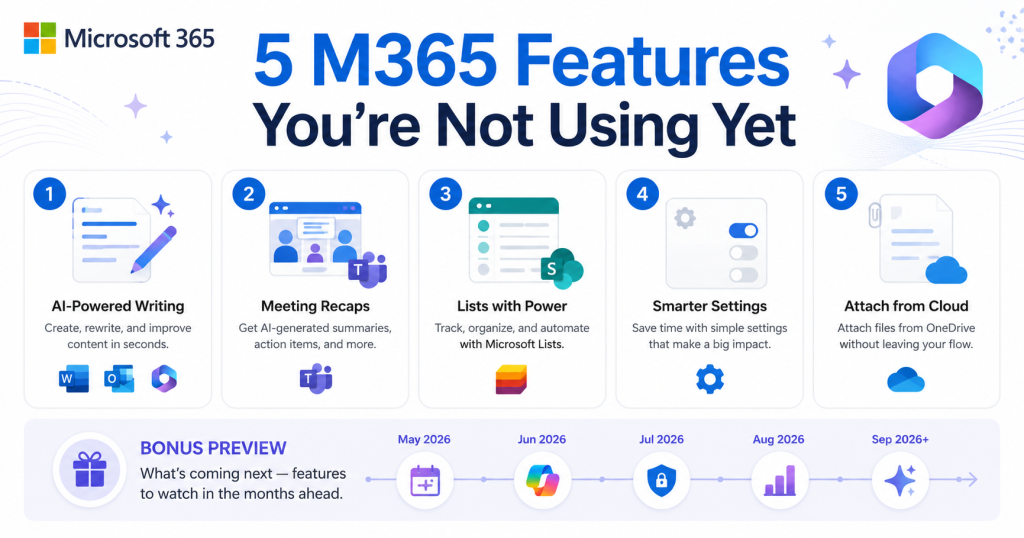
Microsoft 365 features roll out faster than most IT teams can track. Most businesses use roughly a fifth of what Microsoft 365 actually offers, not because the rest is not useful, but because new features ship quietly, buried in update notes that nobody has time to read. This post started in May 2026 as five tips. It has been expanded to ten, all available right now, most of them without any new licenses or setup required, and with a note on which of the “coming soon” items from the original have since shipped.
Why Most Microsoft 365 Features Go Unused
Microsoft 365 is updated continuously; new features drop every week across Outlook, Teams, SharePoint, OneDrive, and Copilot. The challenge is not access. It is awareness, and the small amount of setup that turns a feature from “available” into “used.” The ten below were selected because they deliver real time savings with almost no learning curve. If your team is already on Microsoft 365, these are ready to use today, and our monthly Microsoft 365 newsletter covers the ones that arrive after this post.
10 Microsoft 365 Features You’re Probably Not Using Yet
1. Claude inside Microsoft Word
Anthropic’s Claude is available as a native add-in for Microsoft Word, and it works differently from Copilot in a way worth understanding. Where Copilot tends to rewrite and generate new text, Claude for Word proposes every edit as a tracked change in Word’s native review panel. You see exactly what changed and where, and you approve or reject it the same way you would a colleague’s markup. For document-heavy work such as contracts, reports, client proposals, and policy documents, that transparency matters.
Claude for Word installs as a sidebar add-in from Microsoft AppSource and works on Windows, Mac, and web versions of Word. It is available to paid Claude plan subscribers. Anthropic’s models are also integrated into Copilot experiences across Word, Excel, and PowerPoint for Microsoft 365 Copilot users, enabled by default for most tenants with an admin toggle for EU and UK regions. Read the full story, and remember that any AI tool touching client or patient documents belongs in your AI use policy; our guide on how to prevent AI data leaks explains why.
2. Let Copilot recap your Teams meetings
You just sat through a 45-minute meeting. Before you close Teams, click the Copilot button in the meeting recap, one of the most useful Microsoft 365 features for anyone tired of typing notes. The Copilot meeting recap generates a concise summary, the key decisions, and the follow-up tasks with owners. No rewatching, no hunting through a transcript. It works for any Teams meeting where transcription or recording was enabled, and pairs naturally with transcription-only mode. For managers, practice administrators, or anyone who runs recurring check-ins, this feature alone is worth enabling transcription by default. Our full guide to Copilot in Teams covers licensing and compliance settings.
3. Microsoft Lists can feed your Copilot agent
If your team uses Microsoft Lists, one of the more overlooked Microsoft 365 features, to track patient contacts, vendor information, project status, or equipment inventory, those lists can serve as a knowledge source for custom Copilot agents. Instead of answering “what’s the status of the Smith account?” by opening a list, filtering, and reading, an agent backed by that list surfaces the answer directly in chat. This is especially useful for medical practices and small businesses that already track operational data in Lists but lack the bandwidth to build integrations. A Microsoft 365 Copilot license is required; setup means creating or editing an agent in Copilot Studio and pointing it at the list.
4. Set a default tone in Copilot, once
This takes about 30 seconds and most users have never done it. In Copilot settings you can set a preferred response tone: formal, concise, or friendly. Every Copilot response in Outlook, Word, Teams, or Chat will then match that style without tone instructions in every prompt. Set it to formal for a law firm, friendly for a patient-facing practice, or concise for a team that values brevity.
5. Attach files directly to Copilot prompts
Copilot Chat supports file attachments, and most users do not know it. Attach a contract, a meeting summary, a vendor proposal, or a set of notes, then ask Copilot to summarize the key points, extract action items or deadlines, draft a response, or compare two versions. The document stays in context for the whole conversation. Practical examples: attach a vendor quote and ask for the line items, terms, and renewal dates; attach meeting notes and ask for a follow-up email; attach a signed agreement and ask which clauses need attention before renewal.
6. Loop components in Outlook and Teams
Among the Microsoft 365 features that need no license upgrade, Loop components stand out. They are live, editable blocks, such as a table, a task list, or a paragraph, that you can paste into an email or a Teams chat and that stay in sync everywhere they appear. The classic use is an agenda or an action list that five people update in a chat without anyone sending “version 3.” Type a forward slash in a Teams message or use the Loop button in Outlook to insert one. Few Microsoft 365 features do more to kill reply-all threads.
7. Bookings for appointment scheduling
Microsoft Bookings is one of the Microsoft 365 features included with most business plans and it and replaces a separate scheduling subscription. Publish a booking page, let clients or patients pick a slot, and have it land on the right calendar with a Teams link and automatic reminders. Practices use it for consultations and follow-ups; firms use it for client calls and intake. Set buffer times, staff assignments, and custom intake questions once and stop trading emails about availability.
8. Sensitivity labels that follow the file
What they do
Included with Microsoft 365 Business Premium, sensitivity labels let you mark a document or email as Confidential or Internal and have the protection travel with it: encryption, watermarks, restrictions on forwarding or printing, and rules about who can open it even after it leaves your tenant. They also tell Copilot how to treat the content.
Why regulated firms should turn them on
For a medical practice, law firm, or accounting office, labels are the simplest way to demonstrate the data classification that HIPAA, the FTC Safeguards Rule, and client security questionnaires ask about. Start with three labels and a policy that applies the default automatically.

9. Outlook’s scheduling and focus tools
Three small Microsoft 365 features in Outlook that most people skip: Scheduling Poll (find a time across many attendees without the back-and-forth), Shared calendar “work hours and location” so colleagues can see whether you are in the office or remote before booking you, and Focus time through Viva Insights, which blocks calendar space and silences Teams during it. Together they recover hours a week for anyone whose calendar is public property.
10. Self-service password reset and passkeys
Two identity-related Microsoft 365 features that reduce help desk tickets and risk at the same time. Self-service password reset, available with Microsoft 365 Business Premium, lets staff recover their own accounts securely instead of calling IT. Passkeys, now supported for Microsoft 365 sign-in, replace passwords with a phishing-resistant device unlock. Both need an administrator to enable them and a few minutes of staff communication. Our guides to passkeys for business and Security Defaults vs Conditional Access cover the setup.
Which Microsoft 365 Features Need Which License
| Feature | Minimum License | Setup Needed |
|---|---|---|
| Claude for Word | Any plan plus a paid Claude subscription; Anthropic models in Copilot need Microsoft 365 Copilot | Install add-in; add to AI policy |
| Copilot meeting recap | Microsoft 365 Copilot (or Teams Premium for intelligent recap) | Enable transcription by policy |
| Lists as Copilot agent knowledge | Microsoft 365 Copilot | Build agent in Copilot Studio |
| Copilot default tone | Microsoft 365 Copilot or Copilot Chat | User setting |
| File attachments in Copilot Chat | Copilot Chat (free) or Microsoft 365 Copilot | None |
| Loop components | Business Basic and up | None (admin may need to enable Loop) |
| Bookings | Business Standard and up | Create booking page |
| Sensitivity labels | Business Premium | Admin configures labels and policies |
| Scheduling Poll, work location, Focus time | Business Basic and up | None |
| Self-service password reset, passkeys | Business Premium for SSPR; passkeys on all plans | Admin enables authentication methods |
If you are on Business Basic or Standard and several rows say Microsoft 365 Business Premium, that is the licensing conversation worth having; our breakdown of why Business Premium should be the minimum license explains what else it unlocks, and our Copilot usage audit shows how to confirm paid licenses are earning their keep.
What Shipped Since the Original Post
The May 2026 version of this post previewed five Microsoft 365 features coming over the following 60 days. For the record:
- Multiple managed accounts in Teams and Outlook: rolled out through the summer. Useful for consultants, practice managers with multiple entity logins, and anyone who previously juggled browser profiles.
- Recap sharing for Copilot meetings: organizers can share recording, transcript, and AI summary with a single link (Copilot license required).
- Update channel simplification: the Semi-Annual and Monthly Enterprise channels merged in July. If your organization was on either, your IT provider should have confirmed the new cadence; if nobody did, it is worth a check.
- Whiteboard storage moved to SharePoint: whiteboards now inherit data loss prevention and sensitivity label coverage, which is good news for compliance.
- Windows 365 Business price reduction: the 20 percent cut took effect May 1 and remains, making cloud PCs more realistic for small multi-seat deployments.
For the running list, see our May 2026 Microsoft 365 update roundup and the monthly editions that followed.
Microsoft 365 Features by Role: Where to Start
Ten Microsoft 365 features is a lot to absorb at once, so here is where each role in a typical New Jersey practice or firm gets the fastest payoff:
- Owners, partners, and practice administrators: Copilot meeting recap and file attachments in Copilot Chat. Together they remove most of the note-taking and document-skimming from a management week.
- Front desk and scheduling staff: Bookings and Scheduling Poll. Fewer phone calls about availability, fewer double bookings.
- Attorneys, accountants, and anyone who edits long documents: Claude for Word’s tracked-change editing and sensitivity labels on client files.
- Operations and project leads: Loop components for shared agendas and action lists, and Microsoft Lists feeding a Copilot agent so status questions answer themselves.
- Everyone: passkeys, the default Copilot tone, and work-location sharing in Outlook. Each takes under five minutes and reduces friction every day afterward.
If you adopt one feature per role per quarter, you will have covered the list within a year with almost no training burden, and you will be using considerably more of what you already pay Microsoft for.

How to Roll Out New Microsoft 365 Features Without Chaos
Turning on ten things at once is how good Microsoft 365 features become support tickets. A simple cadence works better for a small business:
- Pick one feature a month. Announce it in a two-minute Teams post with a screenshot and a “why you’d use this.”
- Have IT do the setup first. Admin-side configuration (labels, Bookings, authentication methods, Copilot policies) before staff hear about the feature.
- Identify a champion. One person per team who tries it first and answers “how do I” questions.
- Add it to onboarding. New hires should learn the features you actually use, not discover them a year later.
- Review quarterly. Which features stuck, which licenses are unused, and what Microsoft shipped since.
Our Microsoft 365 tenant settings worth checking post is a good companion for the admin side of that list.
Security and Compliance Notes on These Microsoft 365 Features
A few of these Microsoft 365 features have a compliance dimension worth settling before rollout. Meeting transcription and recap create records; medical and legal offices should set meeting policies on which meetings may be transcribed, how long transcripts are retained, and how attendees are notified. Copilot agents built on Microsoft Lists inherit the list’s permissions, so a list containing patient contacts should be scoped before an agent is pointed at it.
Third-party add-ins such as Claude for Word should be approved through your AI use policy and, for regulated data, reviewed against your BAA and vendor requirements. Sensitivity labels, Bookings intake forms, and Loop components all fall under existing retention and data-handling rules once they hold client or patient information. None of this is a reason to avoid the features; it is a reason to involve whoever owns your cybersecurity plan for small business for the five minutes it takes to set the policy.
One last point on cost. Every feature on this list except the Copilot items and the Claude add-in is already paid for if you hold the license in the table above. The gap between what a business pays Microsoft and what it uses is one of the most common findings in our budget reviews, and closing it is usually cheaper than any new subscription. Our guide on how to reduce IT costs for small business shows where unused Microsoft 365 features and licenses fit in the bigger picture.
Microsoft 365 Features: Frequently Asked Questions
Which of these Microsoft 365 features are free with my existing plan?
Loop components, Scheduling Poll, work location, Focus time, Copilot Chat file attachments, and passkeys are available on standard business plans. Bookings needs Business Standard or above; sensitivity labels and self-service password reset need Business Premium; the Copilot features need a Copilot license.
How do I find out what Microsoft 365 features shipped this month?
The Microsoft 365 admin center message center and roadmap list everything, which is the problem. Our monthly newsletter filters it to what matters for small businesses and medical practices.
Is it safe to use AI features with client or patient data?
Microsoft 365 Copilot operates inside your tenant under Microsoft’s commercial data protection and HIPAA BAA coverage. Third-party add-ins such as Claude for Word need their own review and a place in your AI use policy before regulated data touches them.
Can my IT provider turn these on for us?
Yes. Most of the admin-side setup takes an experienced Microsoft 365 administrator an hour or two per feature, and a managed IT provider typically includes it in service.
Why does my organization only use a fraction of Microsoft 365?
Because Microsoft 365 features arrive silently and nobody owns adoption. A monthly one-feature cadence with a champion fixes it faster than any training course.
Stay Ahead of Every Microsoft 365 Update
Microsoft ships new Microsoft 365 features continuously, and most of them never reach your inbox in a form that is actually useful. Every month, eMDTec filters the release notes down to what matters for New Jersey small businesses and medical practices and sends it in plain English. Subscribe to the eMDTec Microsoft 365 monthly newsletter, or, if you would rather talk through these features and what they mean for your own tenant, schedule a free consultation and we will walk through them with you as part of our managed IT services.