

 Managed IT Services

The right Windows 11 settings save real time every day, and in 2026 there is no longer a choice about the operating system itself.
Windows 10 reached end of support in October 2025, so every business computer that is patched, insured, and compliant is now running Windows 11. The question has shifted from “should we upgrade” to “are we actually using it well.” This guide, rewritten from our 2024 article, covers the ten Windows 11 settings that make the biggest difference to a working day, the settings a business should have IT set centrally rather than leaving to each user, and the newer features in current Windows 11 releases that most offices have not turned on.
10 Windows 11 Settings That Boost Productivity
1. Start menu customization
Of all the Windows 11 settings, the Start menu is the one you touch most. It is the gateway to everything on the computer, which makes it a bigger productivity lever than it looks. Pin the applications you open every day (right-click any app and choose Pin to Start), drag pinned apps onto each other to create labeled folders, and under Settings, Personalization, Start, choose whether you want more pins or more recommendations and which folders appear beside the power button. Current Windows 11 releases also let you turn off the Recommended section entirely, which many professionals prefer.
2. Virtual desktops
Virtual desktops are among the Windows 11 settings that separate different kinds of work: one desktop for the practice management system and email, another for a project, a third for personal use on a lunch break. Open Task View from the taskbar or press Win + Tab, then choose New Desktop. Switch with Ctrl + Win + Left or Right Arrow. Each desktop can have its own wallpaper, which helps you know where you are at a glance.
3. Snap layouts and snap groups
Snap layouts are the Windows 11 settings that most reduce window-juggling. Hover over any window’s maximize button, or press Win + Z, to see layouts; choose one and the window snaps into place, then pick the apps for the remaining zones. Windows remembers the arrangement as a snap group, so hovering over a taskbar icon restores the whole set at once. On a two-monitor desk this turns “find the spreadsheet behind the email” into a single click.
4. Focus sessions and Do Not Disturb
Focus combines a timer with Do Not Disturb among the Windows 11 settings, silencing notifications and taskbar badges for the length of a session. Search for Focus from the taskbar to start one, and set automatic rules so Do Not Disturb turns on during presentations, outside working hours, or while screen sharing. For anyone who has had a client’s name pop up in a Teams notification during a screen share, that last rule alone is worth the setup.
5. Widgets, or turning them off
Widgets (Win + W) show calendar, weather, and news. Some people like the calendar and to-do widgets; most business users find the news feed a distraction. Either customize the board to the two or three widgets you use, or remove the Widgets button from the taskbar under Taskbar settings. Either choice is a productivity improvement over the default.
6. Taskbar customization
Taskbar Windows 11 settings are simple: pin the daily applications, unpin the ones you never open, and right-click the taskbar to open Taskbar settings. There you can hide Search, Task View, Widgets, and Chat, turn on badges, choose whether the taskbar auto-hides, and, on multi-monitor setups, decide whether each monitor shows only its own windows. A clean taskbar is faster to scan and less distracting.
7. Windows 11 keyboard shortcuts worth learning
A handful of Windows 11 keyboard shortcuts repay the few days it takes to make them habit: Win + E for File Explorer, Win + I for Settings, Win + D to show the desktop, Win + L to lock the screen (make this one reflexive in any regulated office), Alt + Tab to switch apps, Win + V for clipboard history with multiple items, Win + Shift + S for a screenshot of a region, and Win + Ctrl + D for a new virtual desktop.
8. Power and battery
Power Windows 11 settings live under Settings, System, Power and battery; choose a power mode that balances performance and battery life, enable Battery Saver to kick in automatically at a chosen level, and set screen and sleep timers that match how you work. For laptops that live in a dock, Best Performance while plugged in and Balanced on battery is a sensible default. Energy recommendations in the same screen suggest changes with real savings on a fleet of machines.
9. Storage Sense
Storage Sense (Settings, System, Storage) automatically clears temporary files, empties the recycle bin on a schedule, and can make locally available cloud files online-only after a period of disuse. A computer with a nearly full SSD slows noticeably; Storage Sense prevents it without anyone remembering to clean up.
10. Accessibility features everyone can use
Accessibility Windows 11 settings help far more people than they are named for. Magnifier (Win + Plus) zooms a region of the screen for small fonts in legacy applications. Narrator and Live Captions help with long documents and recorded meetings. Text size and contrast settings reduce eye strain over a long day. Voice typing (Win + H) dictates into any text field and is faster than typing for many people drafting emails.
Newer Windows 11 Productivity Features Most Offices Have Not Turned On
Windows 11 has had several annual feature updates since the 2024 version of this article, and the current releases include Windows 11 productivity features that are easy to miss:
- Windows Hello and passkeys. Sign in with a fingerprint or face, and use the same unlock as a passkey for Microsoft 365 and other sites. It is faster than a password and cannot be phished. See our guide to passkeys for business.
- Phone Link. Texts, calls, notifications, and photos from an iPhone or Android phone on the desktop, which keeps the phone in the drawer during focused work.
- Clipboard history and cloud clipboard. Win + V shows recent copied items; syncing lets you copy on one PC and paste on another.
- File Explorer tabs and gallery. Multiple folders in one window, and a gallery view for images, both now standard.
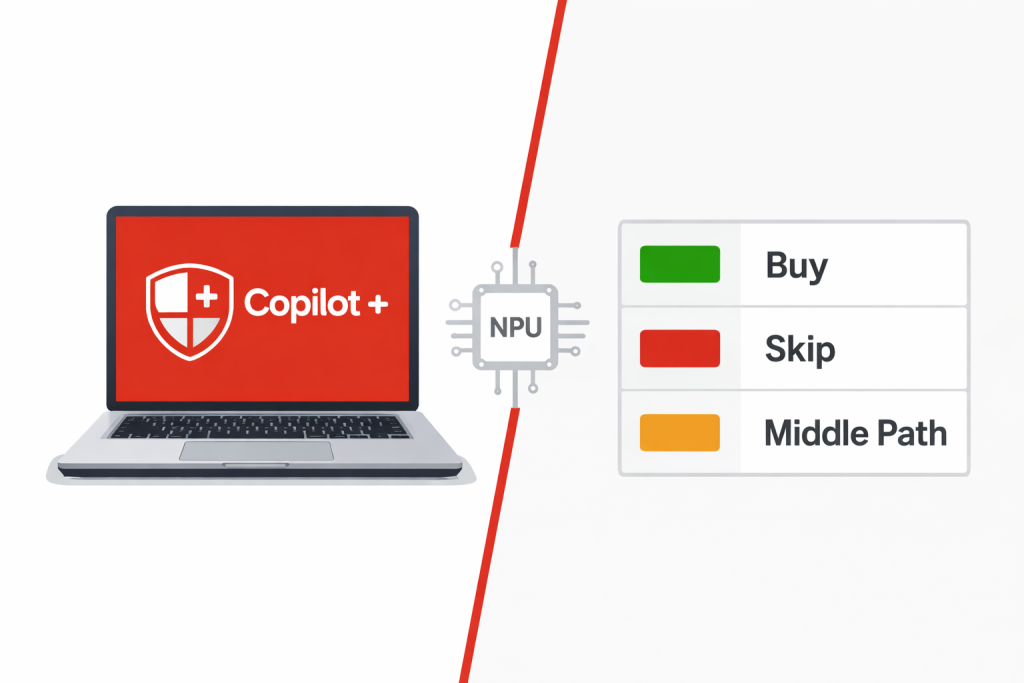
- Copilot in Windows. Useful for quick questions and settings help; businesses should decide through policy whether it is enabled and whether it can see screen content. Copilot+ PCs add on-device AI features; our post on Copilot+ PCs explained covers whether you need one.
- Dynamic Lighting and HDR settings. Minor, but they fix the “why is my monitor washed out” complaints on newer displays.
Managed Windows 11 Settings IT Should Set for You
The settings above are personal preferences. Managed Windows 11 settings are a second group that should never be left to individual users in a business, because they are the controls regulators, cyber insurers, and your own security plan depend on. On a managed business computer these are set and enforced centrally through Intune or your management platform:
| Setting | Why It Is Managed |
|---|---|
| BitLocker full-disk encryption | Required by HIPAA, the FTC Safeguards Rule, and insurers; keys escrowed centrally for recovery |
| Windows Update ring and deadlines | Patches install on schedule; users can defer briefly, not indefinitely |
| Microsoft Defender and EDR | Always on, tamper-protected, reporting to monitoring |
| Standard user (no local admin) | Blocks most malware installs and ransomware at the source |
| Screen lock timeout | Short idle lock in any office that handles client or patient data |
| Windows Hello for Business | Phishing-resistant sign-in tied to the device |
| Smart App Control / application control | Blocks untrusted installers from ads and downloads |
| OneDrive Known Folder Move | Desktop, Documents, and Pictures sync to the cloud, so a failed laptop loses nothing |
| Removable storage and printing policies | Data handling rules for regulated roles |
If your business computers are not managed this way, the productivity settings above are the least of the gap. Our mobile and endpoint security page explains the device layer, and our post on why employees shouldn’t have admin rights covers the single most important row in the table.
Windows 11 Settings by Role
Different jobs get different value from the same Windows 11 settings. A few role-specific suggestions from the practices and firms we support:
- Front desk and scheduling: snap layouts with the scheduling system on one side and email or the phone console on the other; Focus rules that silence notifications while a patient or client is at the counter; Win + L as a reflex every time they step away.
- Clinicians and attorneys moving between rooms: Windows Hello with a fingerprint or face for fast, secure sign-in on shared workstations; a short managed screen-lock timeout; voice typing for notes where policy allows.
- Accountants and analysts: virtual desktops per client or engagement; clipboard history for moving figures between the tax software and spreadsheets; Magnifier for dense legacy screens; two monitors with snap groups per workflow.
- Managers and owners: Phone Link to keep the phone out of sight; Focus sessions for the two hours a day that need real concentration; Copilot in Windows for quick settings help and summaries, under the AI policy.
- Remote and hybrid staff: power modes tuned for docked versus mobile; OneDrive Known Folder Move so nothing lives only on the laptop; Do Not Disturb during screen shares.
Our remote employee setup checklist folds the Windows 11 settings above into day-one onboarding for home-based staff.
Windows 11 Settings for a Faster Computer
Owners often ask which Windows 11 settings will speed up a slow machine. A few help: trim startup apps under Settings, Apps, Startup; keep Storage Sense on; turn off unnecessary visual effects under System, About, Advanced system settings; and uninstall the trial software that shipped with the PC. If the machine is still slow, the cause is almost always hardware: a spinning hard drive, 8 GB of RAM, or a processor several generations old. No setting fixes that. Our guide to how long business computers last explains when to stop tuning and start replacing, and our business IT equipment checklist gives the 2026 specifications.
How to Roll Windows 11 Settings Out Across an Office
Tips only help if people use them. The approach that works in a 10- to 100-person office is to split the Windows 11 settings into the two groups above and handle each differently. The managed group is deployed through Intune or your management platform before a laptop reaches the user, with no decisions required of them. The personal group is delivered as a one-page guide and a 15-minute session during onboarding, with two or three Windows 11 productivity features highlighted per quarter in a short Teams post afterward.
Snap layouts, Focus rules, and Windows Hello get the most adoption when someone shows them on screen for two minutes; keyboard shortcuts stick when the five most useful are printed on a card at every desk. A quarterly check of which features staff actually use, through Microsoft 365 and Intune reporting, tells you what to reinforce next. Businesses that do this consistently find that new hires are productive on day one and that the help desk fields noticeably fewer “how do I” questions.
Two cautions before you start. First, some productivity settings interact with security policy: Phone Link, clipboard syncing, and Copilot’s screen features each move data between devices or to the cloud, and a regulated office should decide about them centrally rather than user by user. Second, resist the urge to apply every tip at once. A new laptop with five well-chosen changes feels faster and calmer; one with thirty changes feels unfamiliar and generates calls. Pick the five that match the role, apply them, and add more at the quarterly review.
For businesses still planning the last of their Windows 10 replacements, the hardware baseline is simple: a business-class machine with Windows 11 Pro, a current processor with TPM 2.0, 16 GB of memory, and an SSD. Machines that meet it run every Windows 11 setting in this guide without complaint; machines that were upgraded in place from aging Windows 10 hardware often do not, and no amount of tuning changes that. Plan the refresh on a three-to-five-year cycle so the question does not come up again in a crisis.
A 15-Minute Windows 11 Setup for a New Business Laptop
- Confirm the managed Windows 11 settings are applied: BitLocker on, updates current, Defender active, standard user account. If any is missing, stop and call IT.
- Set up Windows Hello with a PIN and fingerprint or face.
- Pin the daily apps to Start and the taskbar; remove Widgets and Chat from the taskbar.
- Create two virtual desktops and name them.
- Set Focus rules for presentations and after hours.
- Turn on clipboard history and Storage Sense.
- Set power mode and sleep timers for docked and mobile use.
- Connect Phone Link if the business allows it.
- Learn five shortcuts: Win + L, Win + V, Win + Shift + S, Win + Z, Alt + Tab.
Once the Windows 11 settings are dialed in, our guides to customizing your desktop layout and organizing your devices for productivity build on the same idea. Microsoft’s own Windows 11 tips and tricks page is the reference for feature details as they change.
Windows 11 Settings: Frequently Asked Questions
Can I change these Windows 11 settings on a company computer?
The personal Windows 11 settings in the first section, yes. The managed settings in the table are enforced by IT and should not be changed; if one seems to be interfering with work, ask rather than working around it.
Is Windows 10 still safe to use?
No. Windows 10 stopped receiving security updates in October 2025. Any business machine still running it should be upgraded or replaced; it will fail compliance audits and cyber insurance requirements.
Which Windows 11 setting makes the biggest difference?
Among Windows 11 settings, for most office workers, snap layouts with two monitors, followed by Focus rules and clipboard history. For security, Windows Hello and the screen lock habit.
Should I turn off Copilot in Windows?
That is a business policy decision. Regulated offices usually allow it only on managed devices with the organization’s Microsoft 365 account and disable features that capture screen content, consistent with their AI use policy.
My computer is still slow after changing settings. What now?
Check the hardware. Machines without an SSD, with 8 GB of RAM, or older than five years cannot be tuned into adequacy and should be on the replacement list.
Get More From Every Business Computer
The right Windows 11 settings, personal and managed, turn a standard business laptop into a faster, safer, less distracting tool. eMDTec configures, manages, and supports Windows 11 fleets for New Jersey medical practices, law firms, accounting firms, and professional services businesses, with the managed settings enforced centrally and the productivity tips delivered to staff as part of onboarding, through our managed IT services. Schedule a free consultation and we will check how your computers are set up today.
Originally republished with permission from The Technology Press; substantially expanded and updated by eMDTec for New Jersey businesses.