

 Managed IT Services
If you have ever wondered when to replace small business computers, you probably started asking because of a symptom, not a spreadsheet. Someone’s laptop takes four minutes to boot. The front desk PC freezes every time three programs are open. A battery dies halfway through a client meeting. Those moments are the real answer to the question “should I replace my computer?”, and they usually arrive long before anyone has planned or budgeted for a replacement.

Article Summary: When to replace small business computers: most business desktops and laptops should be replaced on a 3-to-5-year cycle. Replace sooner if a machine cannot run Windows 11, has less than 16 GB of RAM, still uses a spinning hard drive, or is a laptop whose battery no longer holds a charge. If a repair costs more than half the price of a new machine, buy the new machine. Planning the refresh in advance turns a budget surprise into a predictable line item.
This guide gives you a plain-English framework: the average lifespan of business laptops and desktops, the five warning signs that a machine is done, a simple repair-versus-replace calculation, and how a planned New Jersey business hardware refresh keeps your costs predictable instead of reactive.
When to replace small business computers: why an unmanaged refresh cycle hurts growth
Nobody sets out to run a ten-year-old computer. It happens because the machine still turns on, the budget is tight, and replacing it feels like an expense you can push to next quarter. But an aging fleet costs you every day in ways that never show up as a line item: minutes lost waiting on a spinning hard drive, a technician’s hours spent nursing a machine that should have been retired, and security exposure from a device that can no longer take updates.
Employee productivity loss is the part that most owners underestimate. A computer that costs each person even ten minutes a day adds up to more than 40 hours a year, per employee. Multiply that across your team, and the “savings” from delaying a replacement disappear quickly. We covered the broader numbers in our post on the true price of IT downtime.
The industry benchmark is simple: plan on a 3-to-5-year life for business desktops and laptops. Laptops sit at the shorter end because they get carried, dropped, and run on batteries that wear out. Desktops can stretch toward five years if they are specified well to begin with. Hardware lifecycle planning is the practice of knowing where every device sits in its computer lifecycle, which machines are at year one and which are at year five, so the question of when to replace small business computers is answered before anything breaks.
How often should a business upgrade computers? The 3-to-5-year answer
Owners ask us how often a business should upgrade its computers, and the real answer is that the calendar is only half the story. Age matters, but so does what the machine is made of. Three quick specifications tell you more than the purchase date does.
The average lifespan of business laptops vs. desktops
The average lifespan of business laptops is roughly three to four years in day-to-day office use. Batteries lose capacity with every charge cycle, hinges and keyboards wear, and the components are sealed in a way that makes upgrades limited or impossible. Business desktops tend to last four to five years because they run cooler, do not get moved around, and can often take a memory or drive upgrade midway through their life.
Those figures assume a business-class machine. Consumer laptops bought off a retail shelf were built to a lower standard and rarely make it to the same age in a work environment. If you are buying new, the difference in price between consumer and business models usually pays for itself in the extra year of service and the longer warranty.
Windows 11 compatibility requirements are now the first test
First and foremost, every computer in your office should be running Windows 11. Microsoft ended support for Windows 10 on October 14, 2025. A Windows 10 machine still turns on and still runs your software, but it no longer receives free security patches, which means every newly discovered vulnerability stays open on that device. For a business handling client data, that is not a risk worth carrying. Our earlier post explains why staying on Windows 10 puts your business at risk.
The catch is that many older PCs cannot be upgraded. Microsoft’s Windows 11 system requirements call for a supported processor, TPM 2.0, and UEFI firmware with Secure Boot. Machines built before roughly 2018 often fail one of those checks, and there is no reasonable fix. If a computer cannot run Windows 11, it is at the top of your replacement list regardless of how old it is or how well it seems to work.
Microsoft does sell Extended Security Updates for Windows 10 to businesses that need more time, but the pricing is built to push you off the platform: $61 per device in year one, $122 in year two, and $244 in year three. Paying that on a computer that is already too old to run modern software is spending good money to keep a bad asset alive.
16 GB of RAM and a solid-state drive are the minimum
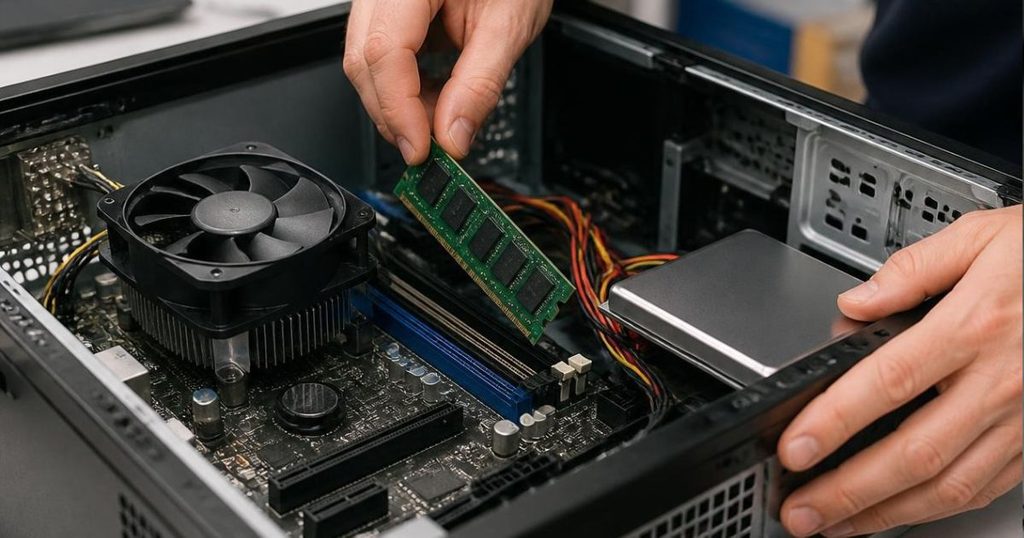
Second, look at memory and storage. Microsoft’s official floor for Windows 11 is 4 GB of RAM, but nobody who works for a living should run on that. Our standard for a business computer is at least 16 GB of RAM. Modern browsers, Microsoft 365, Teams, and any line-of-business application running at the same time will consume 8 GB without trying. With 16 GB, the machine has room to breathe and will still be usable in year four.
The drive matters even more. If a computer still boots from a traditional spinning hard drive, it should be replaced or, if the rest of the machine is sound, upgraded to a solid-state drive (SSD). An SSD is the single biggest speed difference an office worker will ever notice. Boot times drop from minutes to seconds, applications open instantly, and the “why is this so slow” complaints stop. A PC that cannot be fitted with an SSD, or is too old to be worth the labor, goes on the replacement list.
For laptops, check the battery before anything else
For laptops, ask one more question: how much battery life is actually left? A business laptop that once ran all day and now needs to be plugged in after 90 minutes has a battery at the end of its life. In many modern laptops the battery is glued or sealed in, so a replacement is a shop repair rather than a five-minute swap, and it is often not worth doing on a machine that is already three or four years old.
Some symptoms move a laptop straight to the replacement column: a battery that will not charge at all, a laptop that shuts off the moment the power cord is unplugged, or a battery that has swollen enough to push on the trackpad or case. A swollen battery is a safety issue. Stop using the machine and have it handled by someone who knows how to dispose of it properly.
5 warning signs your office computer needs replacement
Specifications tell you what a machine should be able to do. These are the signs your office computer needs replacement based on what it is actually doing to your business, and each one is a practical signal for when to replace small business computers.
1. It cannot take security updates
This is the sign that matters most, and it is the one owners notice least because the computer keeps working. A machine that is stuck on Windows 10, or that fails to install updates because of failing hardware, is an unlocked door on your network. Attackers do not need to target you specifically; automated scans find unpatched devices on their own. For any business with compliance obligations, whether HIPAA, the FTC Safeguards Rule, or the New Jersey Data Privacy Act, running unsupported systems is a finding waiting to happen. If you are asking, “Should I replace my computer?” and the machine cannot be patched, the answer is yes.
2. The warranty has expired and the parts are hard to find
Expired hardware warranty risks are simple: when something breaks, you pay full price for the part and the labor, and you wait while it is sourced. Business-class machines typically ship with a three-year warranty, which is not a coincidence. Manufacturers set that term because it lines up with the period they expect the hardware to run without trouble. Once the warranty is gone, every failure is your problem and your cost, and a single motherboard or screen repair can approach the price of a new machine.
3. Your team is waiting on it
Watch how people use their computers. If someone opens a document and then checks their phone while it loads, the machine is costing you money. Slow boot times, applications that freeze, browser tabs that crash, and constant fan noise are all signs the hardware can no longer keep up with the software it is being asked to run. Employee productivity loss from slow equipment is a real, recurring expense; it just never appears on an invoice.
4. It has become a support ticket generator
Every IT provider has a short list of machines they know by name because they come up so often. Blue screens, random reboots, a drive that reports errors, a laptop that will not wake from sleep. If the same computer accounts for a noticeable share of your support requests, the repair labor alone is eating the money you saved by not replacing it. Repeated hardware faults are also an early warning of the failure that will eventually take the machine out for good, usually on the worst possible day.
5. It cannot run the software your business now depends on
Software moves faster than hardware. New versions of your practice management system, accounting platform, or design tools assume a current operating system and a reasonable amount of memory. When a vendor drops support for your version because the machine cannot run the new one, you are stuck on an old release with its own security problems. The same applies to new capabilities. Many of the productivity features arriving in Microsoft 365 assume modern hardware; we walked through what that means in our Copilot+ PC buying guide.

Cost to repair vs replace business PC: the 50% rule
When a machine breaks, you need a fast way to decide. Here is the framework we use with our own clients when weighing the cost to repair vs replace business PC hardware.
Step 1: Price the repair completely. Include the part, the labor, and the downtime while the machine is out of service. If the repair means the employee is without a computer for three days, the cost of those three days belongs in the calculation. A loaner reduces that cost but does not remove it, since setup and data transfer take time on both ends.
Step 2: Price the replacement. Get a real quote for a business-class machine that meets the standard above: Windows 11, 16 GB of RAM, an SSD, and a three-year warranty. Add the labor to migrate the user’s data and applications. If you are surprised by current prices, you are not alone; we explained the factors behind them in why computers are so expensive in 2026.
Step 3: Apply the 50% rule. If the repair costs more than 50% of the replacement, replace the machine. This is the simplest test for when to replace small business computers, and it removes the guesswork. You would be putting half the price of a new computer into a device that is already several years into its life, with no warranty, older components, and a shorter remaining runway. The other half of the money buys you a new machine that will run reliably for another three to five years.
When repair still makes sense
Repair is the right call when the machine is under three years old, is still under warranty, or needs an inexpensive upgrade that meaningfully extends its life. Adding memory to reach 16 GB or swapping a hard drive for an SSD on a two-year-old desktop can buy another two good years for a fraction of the replacement cost. The test is whether the machine will meet the standard after the work is done. If it still cannot run Windows 11, no repair is worth it, and the question of when to replace small business computers answers itself.
How to plan a New Jersey business hardware refresh without the budget shock
Once you know when to replace small business computers, the next step is to stop doing it all at once. Trying to replace business computers for an entire office in one year is how a technology budget becomes a crisis. Staggering the refresh is how it becomes routine.
Start with an inventory
List every computer with its purchase date, operating system, RAM, drive type, and warranty status. This does not need to be complicated; a spreadsheet works. What you are looking for is a clear picture of which machines fail the Windows 11 test, which are under 16 GB or still on spinning drives, and which are past warranty. Our guide to hardware lifecycle management for small business walks through the audit step by step.
Replace roughly a quarter of your fleet each year
On a four-year cycle, you replace about 25% of your computers every year. The oldest and least capable machines go first. This spreads the spend evenly, keeps every device inside its warranty for most of its computer lifecycle, and means no single year carries a large, unplanned hardware bill. The same logic applies to your computers and servers; a server that is out of warranty and out of support deserves the same scrutiny. It also means you are always buying a few machines at a time, which makes it easier to standardize on one model and keep support simple.
Budget for it like any other operating cost
Predictable IT budgeting means treating hardware as a recurring expense rather than an emergency purchase. When you know that a set number of machines will be replaced each year, you can put the amount in the budget in advance, time purchases around cash flow, and take advantage of pricing when it is favorable. We wrote more about this approach in IT budget planning for small business.
Retire old machines properly
A retired computer still holds your data. Drives should be securely wiped or destroyed before the hardware is recycled, donated, or sold. This is a compliance requirement for many of our healthcare, legal, and financial clients, and good practice for everyone else. Do not let a stack of old laptops sit in a closet with client files on them. Our post on how to responsibly get rid of e-waste covers the recycling side.

Frequently asked questions
When to replace small business computers: what is the rule of thumb?
The short answer on when to replace small business computers is every three to five years. Replace sooner if the machine cannot run Windows 11, has less than 16 GB of RAM, still uses a spinning hard drive, is out of warranty and generating support tickets, or is a laptop whose battery no longer holds a charge.
Is it worth upgrading an old PC to Windows 11 instead of replacing it?
Only if it meets Microsoft’s requirements, including a supported processor and TPM 2.0. Many machines built before 2018 do not qualify, and there is no practical workaround. If the computer does qualify but has 8 GB of RAM or a hard drive, upgrading memory and adding an SSD alongside the Windows 11 upgrade can extend its useful life.
Should I buy business-class or consumer computers?
Business-class. They are built to run all day, come with longer warranties (typically three years, often with on-site service), include the security hardware Windows 11 relies on, and are easier for an IT provider to manage and standardize. The higher purchase price is usually recovered in longer life and fewer repairs.
What happens if I keep using Windows 10?
The computer keeps working, but it no longer receives free security updates. Every new vulnerability found in Windows 10 stays open on that machine. Microsoft offers paid Extended Security Updates for businesses, starting at $61 per device and doubling each year, but that is a bridge, not a destination. For businesses with compliance obligations, unsupported operating systems are a common audit finding.
How does a managed IT provider help with hardware refreshes?
A managed IT provider tracks the age, specifications, and warranty status of every device, tells you when to replace small business computers before they fail, standardizes what you buy, handles setup and data migration, and securely wipes the old equipment. The result is a refresh cycle that runs on a schedule instead of on emergencies.
Stop paying for break-fix surprises
The most expensive way to manage computers is to wait for them to break. A reactive, break-fix approach means every failure is an emergency: a rush purchase at whatever price is available that week, a technician’s time spent on a machine that should have been retired, and an employee sitting idle in the meantime. Budgets spike, work stops, and the decision about when to replace small business computers gets made for you, at the worst possible moment.
A planned refresh cycle is the opposite. You know which machines are due, what they will cost, and when the money will go out. That is what eMDTec’s managed IT services in New Jersey are built to deliver: an inventory of every device, a replacement schedule that matches your budget, and a team that handles the purchasing, setup, and secure retirement so your staff never notices the changeover.
If you are not sure where your office stands, we will tell you. eMDTec provides small business IT support in NJ from our office in Verona, with IT consulting services in Essex County and IT consulting throughout northern and central New Jersey. Schedule a free workspace technology assessment, or contact us with a question, and we will inventory your computers, flag the ones that fail the Windows 11 test, and give you a plan for when to replace small business computers with real numbers, no obligation.