

 Managed IT Services
It happens to careful people every day. An email looks like it’s from Microsoft, your bank, or a client, you click, and a second later something feels wrong. If you clicked on a phishing link, don’t panic. What you do in the next few minutes matters far more than the click itself.
Phishing is one of the most common ways attackers get into businesses, and modern phishing emails are polished, personalized, and often written with AI. Even trained employees get fooled. The good news is that quick, calm action can usually stop a phishing click from turning into a breach.
This guide walks you through exactly what to do if you clicked on a phishing link, how to tell how serious it is, and how businesses can prevent the next one.
Why Speed Matters More Than the Click
Attackers who steal a password usually act quickly. Some sign in within minutes, set up hidden email forwarding, register their own MFA device, or start sending phishing emails from your account to your contacts. Others sell the credentials to criminals who specialize in wire fraud or ransomware. Every minute between the click and the report gives them more room to work.
On the other hand, a password changed and sessions revoked within the first few minutes leaves an attacker with nothing useful. That’s why the steps below are ordered the way they are: contain first, investigate second, and clean up last.
First, Figure Out What Happened
If you just clicked on a phishing link, start by figuring out what actually happened. Not every phishing click is equally dangerous. The right response depends on what happened after you clicked on a phishing link.
| What happened | Risk level | What it means |
|---|---|---|
| You clicked, the page opened, and you closed it without entering anything | Lower | Often no harm, but report it and watch for follow-up attempts |
| You entered a username and password | High | Assume the account is compromised and act immediately |
| You approved an MFA prompt you didn’t expect | High | The attacker may already be signed in |
| You downloaded or opened a file | High | Malware may be on your device |
| You entered payment or banking details | High | Contact your bank right away |
Be honest about what happened. IT teams can only help with what they know, and a quick, accurate report is the best thing you can do.
What to Do If You Clicked on a Phishing Link: 9 Steps
1. Stop and don’t enter anything else
Close the page. The worst thing to do after you clicked on a phishing link is keep going. Don’t enter any more information, don’t download anything, and don’t reply to the email. If a page is asking for your password, payment details, or an MFA code, that’s a major red flag.
2. Disconnect if you downloaded something
If you opened an attachment or a file downloaded automatically, disconnect the device from the network by turning off Wi-Fi or unplugging the network cable. Don’t shut it down or wipe it. Your IT team may need to examine it.
3. Report it to IT immediately
At work, tell your IT team or managed service provider right away, even if you’re embarrassed. Most companies would much rather hear about a click in five minutes than discover a breach in five weeks. Use your company’s report button or forward the email as an attachment if that’s your process.
4. Change your password from a different device
If you clicked on a phishing link and entered a password, change it immediately, ideally from a different, trusted device. If you’ve used the same password anywhere else, change it there too. Use a strong, unique password for every account.
5. Sign out of all sessions
Changing a password doesn’t always kick out an attacker who’s already signed in. Attackers sometimes steal session cookies that keep them logged in. Ask IT to revoke all active sessions for your account. Our article on session cookie hijacking explains why this step matters.
6. Check your MFA settings
Confirm that multi-factor authentication is turned on and that no unfamiliar phone numbers or authenticator apps have been added to your account. If you approved an unexpected prompt, tell IT right away.
7. Look for signs of account tampering
Attackers who get into an email account often create hidden rules to forward or delete messages so they can read your email without you noticing. Ask IT to check for new inbox rules, forwarding settings, and sent messages you didn’t write.
8. Scan your device
After you clicked on a phishing link, run a full scan with your company’s security software, or let IT do it. If anything is found, follow their instructions rather than trying to clean it yourself.
9. Monitor your accounts
Watch your bank and credit card statements for unfamiliar charges, and check your credit reports if you entered personal information. If you entered banking details, call your bank using the number on the back of your card, not one from the email.
The First Hour After You Clicked on a Phishing Link
Speed matters. Here’s what a good first hour looks like:
- Minutes 0–5: close the page, disconnect if you downloaded anything, and report it to IT.
- Minutes 5–15: change the affected password from another device and ask IT to revoke active sessions.
- Minutes 15–30: IT checks sign-in logs, inbox rules, MFA methods, and the device for malware.
- Minutes 30–60: IT removes the phishing email from other inboxes, blocks the sender, and decides whether further investigation is needed.
If you clicked on a phishing link and followed these steps within the first hour, the odds of serious damage drop dramatically.
Common Mistakes After a Phishing Click
- Waiting to see what happens. Attackers move fast. Delays give them time to set up forwarding rules or move to other accounts.
- Changing the password on the same device. If malware is present, it may capture the new password too.
- Only changing one password. Reused passwords mean other accounts are at risk.
- Replying to the sender. It confirms your address is active and invites more attacks.
- Wiping the computer yourself. It can destroy evidence your IT team or insurer needs.
- Keeping quiet. The most damaging mistake after you clicked on a phishing link is not telling anyone.
Clicked on a Phishing Link in a Text, QR Code, or Chat?
Phishing isn’t limited to email anymore.
Text messages (smishing)
Fake delivery notices, bank alerts, and “your account is locked” texts are common. If you clicked on a phishing link in a text, don’t enter anything, close the browser, and report it. On a work phone, tell IT.
QR codes (quishing)
Criminals place fake QR codes in emails, on parking meters, and on flyers. Treat a QR code like any other link: if it leads to a login or payment page you weren’t expecting, close it.
Teams, Slack, and other chat apps
Attackers increasingly send phishing links through collaboration tools, sometimes from compromised accounts of people you know. If a colleague sends an unexpected link with an urgent message, confirm with them another way.
Fake invoices and shared documents
“Please review the attached invoice” or “A document has been shared with you” are classic lures. If the shared file asks you to sign in to view it, be especially suspicious.
What IT Checks After Someone Clicked on a Phishing Link
When an employee reports that they clicked on a phishing link, a good IT team will typically review:
- Sign-in logs for unusual locations, devices, or times.
- Inbox rules, forwarding, and recently sent messages.
- Registered MFA methods and recent MFA approvals.
- Endpoint security alerts and a full scan of the device.
- Whether the same email reached other employees.
- Any access to sensitive files or systems after the click.
This review usually takes less than an hour and gives you confidence that the incident is contained.
How to Recognize Phishing Links Next Time
Phishing comes in many forms: fake emails, text messages, QR codes, collaboration-app messages, and phone calls. Common warning signs include:
- Suspicious links: hover over a link before clicking. Look for misspelled domains, extra words, or unfamiliar extensions.
- Urgency or threats: “Your account will be closed,” “Payment failed,” or “Respond within 1 hour.”
- Spoofed senders: a familiar display name with an unusual email address behind it.
- Unexpected attachments or shared files: especially invoices, voicemails, or documents you weren’t expecting.
- Requests for credentials or MFA codes: legitimate companies don’t ask for these by email.
- Changes to payment instructions: always verify by phone, using a number you already have.
Our guide on how to spot a scam email goes deeper on each of these.
Why Even Careful People Click
Phishing works because it targets human nature, not technical knowledge. Attackers time messages for busy moments, imitate trusted brands perfectly, and create urgency that short-circuits careful thinking. Some advanced attacks use fake login pages that capture both your password and your MFA code in real time. We explain those in our article on adversary-in-the-middle phishing attacks.
That’s why the fact that someone clicked on a phishing link shouldn’t be treated as a personal failure. It’s a signal that layered defenses matter.
For Business Owners: Responding When an Employee Clicked on a Phishing Link
How you respond when someone clicked on a phishing link shapes whether employees report the next one. Here’s a simple playbook:
- Thank the employee for reporting. Fast reporting is exactly what you want.
- Contain the account and device with your IT provider: reset passwords, revoke sessions, check inbox rules, and scan the device.
- Check whether others received the same email and remove it from all inboxes.
- Block the sender and malicious domain in your email filter.
- Review logs for any unusual activity tied to the account.
- Decide whether it’s a reportable incident. If sensitive data may have been accessed, involve your insurer and legal counsel. Our guide on what to do after a cyberattack covers the next steps.
- Use it as a teaching moment for the whole team, without naming the employee.
Two Examples: Fast Report vs. Slow Report
The fast report. A bookkeeper clicked on a phishing link that looked like a Microsoft 365 sign-in page and entered her password. She realized something was off when the page reloaded and called IT within five minutes. IT reset her password, revoked her sessions, and confirmed that MFA had blocked the attacker’s login attempt. Total impact: about 20 minutes.
The slow report. At another business, an employee clicked on a phishing link, entered his password, and approved an MFA prompt he assumed was routine. He didn’t mention it. Two weeks later, a client called asking why the company’s bank details had changed on a recent invoice. The attacker had been reading email the whole time and had sent a fake invoice from his real account. The cleanup involved the bank, the insurer, legal counsel, and a difficult conversation with the client.
The difference wasn’t the click. It was how quickly someone spoke up.
Insurance and Compliance Considerations
If you clicked on a phishing link on a work account that holds sensitive data, the incident may have compliance implications. Healthcare practices may need to assess whether protected health information was accessed under HIPAA. Financial businesses covered by the FTC Safeguards Rule have their own reporting requirements. Cyber insurance policies often require prompt notice of suspected incidents, so involve your insurer early if there’s any sign the attacker got in.
Where to Report Phishing
- Your IT team or provider first, if it happened at work.
- The impersonated company, such as your bank or Microsoft, through their official reporting channel.
- The FTC, which offers guidance on recognizing and reporting phishing scams.
- The FBI’s Internet Crime Complaint Center (IC3) if money was lost, especially through wire fraud.
How to Prevent Future Phishing Incidents
1. Build cybersecurity awareness
Regular, short training and simulated phishing tests keep employees sharp and reduce how often anyone clicked on a phishing link in the first place. Make reporting easy and celebrate people who catch phishing attempts. Learn more in our guide to security awareness training.
2. Add stronger security layers
- Multi-factor authentication on every account, with phishing-resistant options like passkeys for high-risk users. See the best MFA solution for SMBs.
- Advanced email filtering that scans links and attachments before they reach inboxes.
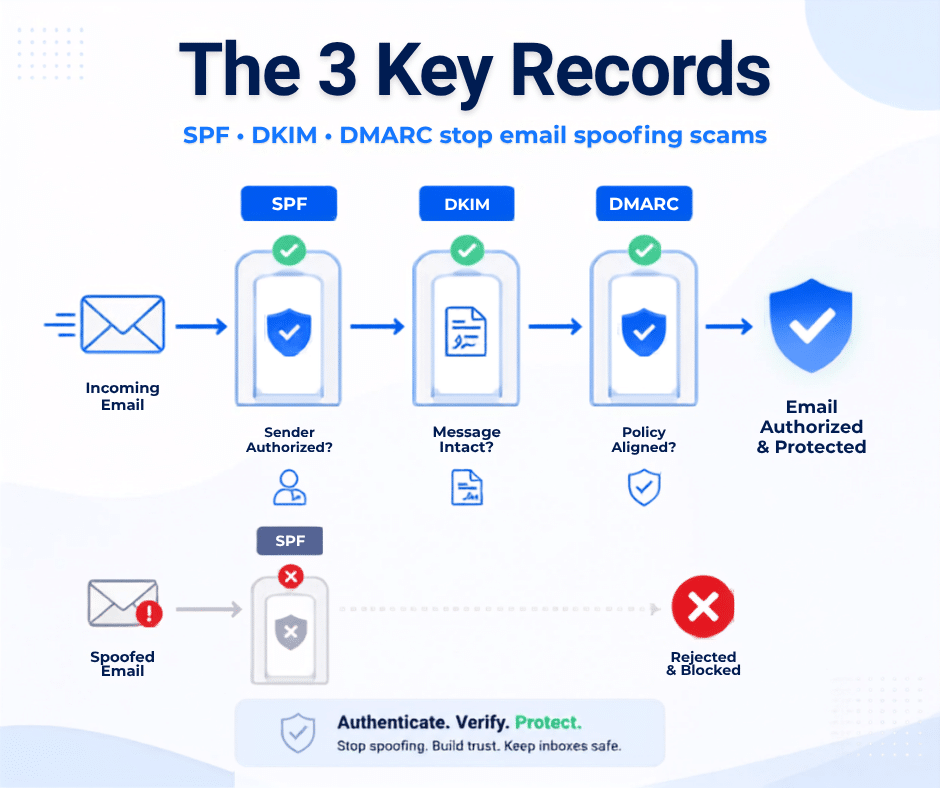
- Email authentication (SPF, DKIM, and DMARC) to make it harder for criminals to impersonate your domain.
- Managed endpoint detection and response to catch malware that slips through.
- Alerts for risky sign-ins and new inbox rules.
3. Partner with a cybersecurity provider
A managed security provider can put these layers in place, monitor them around the clock, and respond quickly when someone clicked on a phishing link, so incidents are contained in minutes instead of discovered weeks later.
Frequently Asked Questions
Can you get hacked just by clicking a phishing link?
Sometimes. Most phishing links aim to steal credentials, so simply visiting the page is usually lower risk than entering information. But some links lead to malicious downloads or exploit browser vulnerabilities, which is why reporting every click matters.
What if I clicked on a phishing link on my phone?
Follow the same steps: don’t enter anything, close the page, change any password you entered from another device, and report it. If your phone is used for work, tell IT so they can check the device and your accounts.
What if I clicked a phishing link on my home computer?
The same steps apply. Change any passwords you entered, run a security scan, and watch your accounts. If you use that computer for work email or files, tell your employer’s IT team as well.
Should I delete the phishing email?
Report it first. Your IT team may want to examine the email and remove it from other inboxes. After that, delete it.
How do I know if the attacker got into my account?
Signs include sign-in alerts you don’t recognize, sent emails you didn’t write, new inbox rules, or contacts reporting odd messages from you. If you clicked on a phishing link and entered credentials, assume the account was accessed until IT confirms otherwise.
Will I get in trouble at work for clicking?
In a healthy security culture, no. Companies want quick reports. Hiding a click is what causes real damage.
Remember: the goal isn’t a team that never makes mistakes. It’s a team that reports quickly, backed by systems that limit the damage when something slips through.
Don’t Fall for the Bait: Let eMDTec Help
If you clicked on a phishing link, acting quickly and calmly makes all the difference. And with the right protections in place, a single click doesn’t have to become a crisis.
eMDTec has protected New Jersey businesses since 2002. Our cybersecurity services include email filtering, MFA rollout, 24/7 monitoring, and security awareness training, so your team is prepared and your systems are watched around the clock.
Want to know how your business would hold up against a phishing attack? Schedule a free consultation and we’ll review your defenses with you.