

 Managed IT Services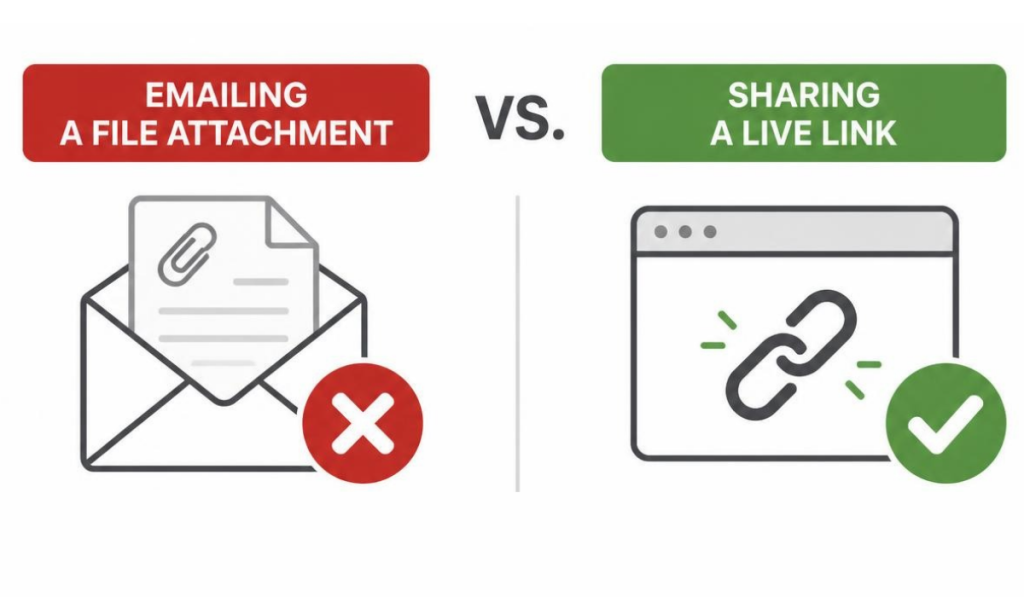
The short version: If your business runs on Microsoft 365, you already have both OneDrive and SharePoint. Files end up scattered across the two because nobody was ever told which is which. OneDrive is for your own work. SharePoint is for anything the team touches. Getting the OneDrive vs SharePoint split right makes files easier to find, safer when someone leaves, and far quicker to recover when something goes wrong.
If your business runs on Microsoft 365, you have two places to put a file: OneDrive and SharePoint. Almost nobody gets told the difference, so files land wherever is quickest. Some in OneDrive, some in SharePoint, some in a Teams channel, a few still sitting on the desktop.
Then come the everyday headaches. A file nobody can find. A document only one person can open. A scramble to recover somebody’s work the week after they resign.
The OneDrive vs SharePoint question sounds like an IT detail. It is not. It decides how fast your team finds things, how much of your business walks out the door with a departing employee, and how bad a bad day gets. The rule is simple once someone explains it properly, so let us do that.
OneDrive vs SharePoint: what each one is actually for
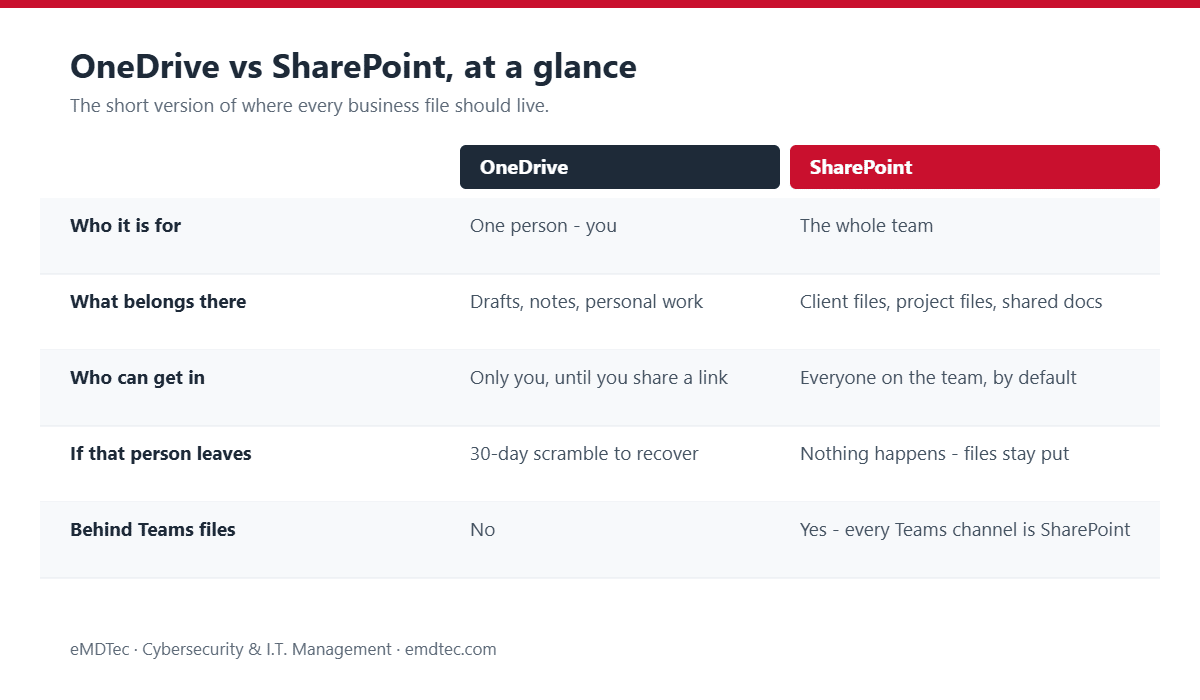
Microsoft gave you two storage tools that look almost identical from the outside. Same file list, same sharing menu, same sync icon in the corner of your screen. The OneDrive vs SharePoint difference is not what they do. It is who they belong to.
OneDrive is your desk drawer
OneDrive is your own space. Your drafts, your notes, the half-finished thing you are not ready to show anyone. Nobody else can see inside it unless you hand them a key, and the drawer belongs to your account rather than to the business.
That is genuinely useful. Everyone needs somewhere to think out loud without an audience. The trouble starts when work the whole team depends on quietly ends up in one person’s drawer.
SharePoint is the filing cabinet
SharePoint is the team’s space. Client files, project folders, the documents more than one person needs to open. The team owns the cabinet, not any single employee, and access follows the team rather than the individual.
Personal drawer, shared cabinet. That single distinction answers almost every OneDrive vs SharePoint question you will ever have. Everything below is just working through the consequences.
Where Teams fits into the OneDrive vs SharePoint question
Most people treat Microsoft Teams as a third place files can live. It is not. When you upload a file to a Teams channel, it is stored in that team’s SharePoint site. The Files tab in Teams is a window into SharePoint, nothing more.
So if your team already works in Teams, your shared files are already in SharePoint whether anyone realised it or not. That is good news. Those files have shared ownership and do not depend on one person’s account staying active.
It also means the OneDrive vs SharePoint fix is smaller than it looks. You are not migrating to a new system. You are moving a handful of files out of personal drawers and into a cabinet you already own.
So where should your files live?
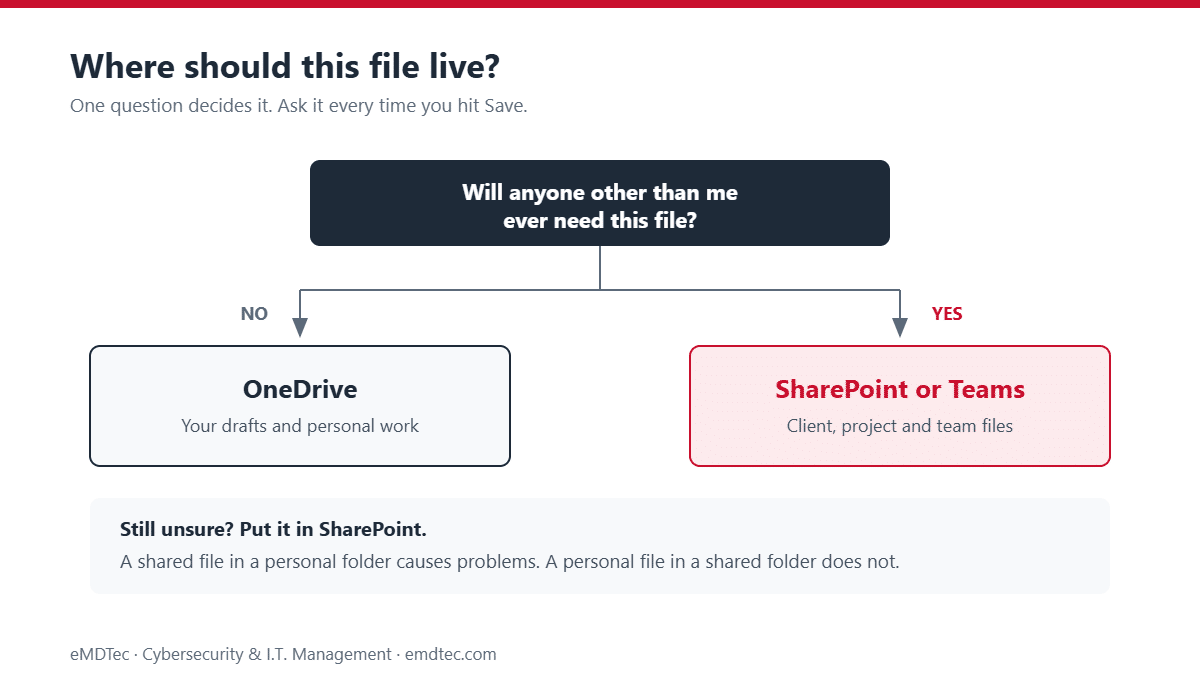
Here is the rule that keeps it simple. Ask one question before you save anything.
The one question that decides it
Will anyone other than me ever need this file?
If the answer is no, OneDrive is fine. Your draft, your notes, your working copy. If the answer is yes, or even probably, it belongs in SharePoint or the Teams channel for that work.
When you genuinely cannot tell, put it in SharePoint. A shared file sitting in a personal folder creates problems. A personal file sitting in a shared folder does not.
- Your own draft or working notes? OneDrive.
- A client file, a project file, or anything two people touch? SharePoint or the relevant Teams channel.
- Something important that only exists on a laptop desktop? Neither, and that is the problem. Move it today.
Sharing files the right way
Where a file lives also changes how sharing behaves, and this is where the OneDrive vs SharePoint decision does quiet damage you never see coming.
Why OneDrive links break
When you share a file from your OneDrive, you are inviting people into your personal space with a link tied to your account. It works, right up until it does not. If you leave the company, or the file moves, those links stop working and whoever relied on them is stuck with no obvious way forward.
Why SharePoint links keep working
In SharePoint or a Teams channel, the right people already have access because the files belong to the team. There is far less link-juggling, fewer permission requests landing in your inbox, and nothing breaks when one person changes roles or leaves.
Stop emailing attachments
Emailing a file makes a copy, and copies drift. Share a link instead. When everyone opens the same file in OneDrive or SharePoint, they are all looking at the current version, and you never end up reconciling five slightly different drafts attached to five different emails.
Why OneDrive vs SharePoint matters more than it sounds
Putting files in the right place is not tidiness for its own sake. The OneDrive vs SharePoint split saves you real trouble later, usually on a day you did not plan for.
When someone leaves
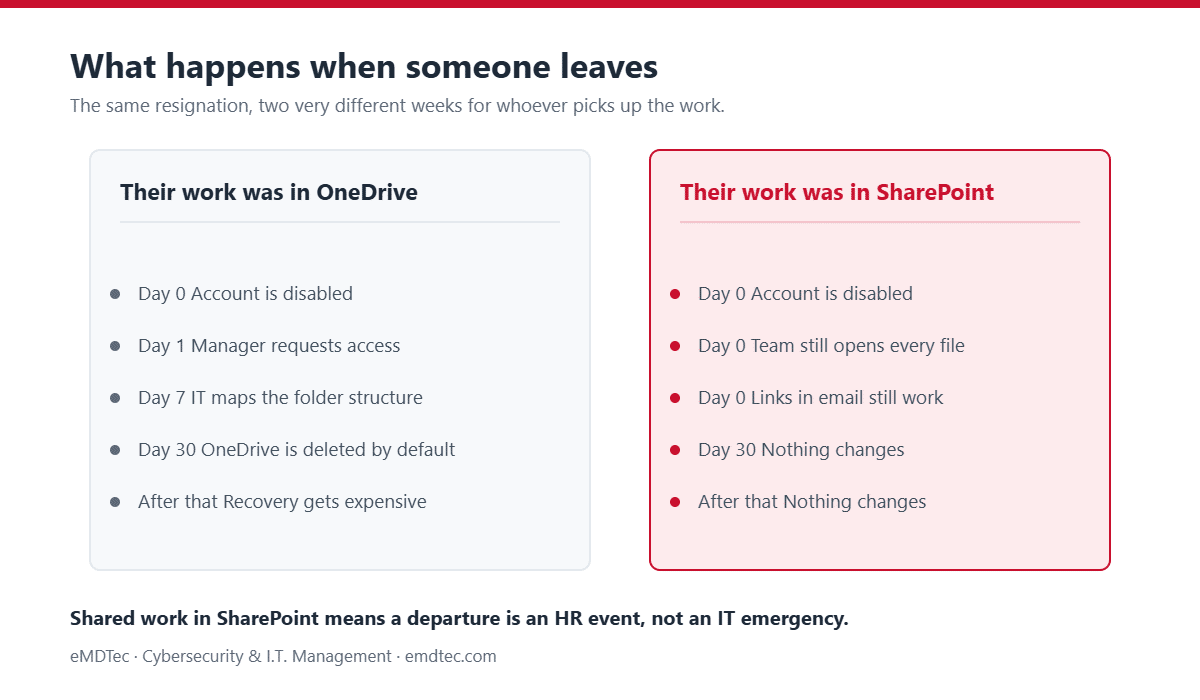
A personal OneDrive is not shared by default, so important work kept only there can be hard to reach the moment the account is switched off. Microsoft holds a deleted user’s OneDrive for 30 days by default and gives their manager access, but that turns a resignation into a race against a clock nobody set deliberately.
Files kept in SharePoint stay with the team no matter who comes or goes. Offboarding becomes an HR task instead of an IT emergency, which is exactly where it belongs. We wrote more about that pattern in why bad onboarding is the real cause of messy offboarding.
Finding things without asking around
When the team’s documents live in one shared SharePoint library, people know where to look. That sounds small until you add up the minutes your staff spend hunting through inboxes and personal drives, or interrupting a colleague to ask where something went.
Getting a file back after a mistake
Files in OneDrive and SharePoint both keep a recycle bin and a version history. Someone overwrites a proposal, deletes the wrong folder, or saves over a client document with the wrong numbers, and you can roll it back. A file that only ever existed on a laptop offers none of that.
Keeping permissions under control
Shared libraries let you see and manage who has access in one place. Scattered personal shares do not. That matters more than ever if you are looking at Microsoft 365 Copilot, because Copilot surfaces whatever a user already has permission to see. We covered the clean-up in how to prepare Microsoft 365 permissions for a safe Copilot rollout.
How to get OneDrive vs SharePoint right in your business
You do not need a project plan for this. Five practical steps handle most of the OneDrive vs SharePoint mess.
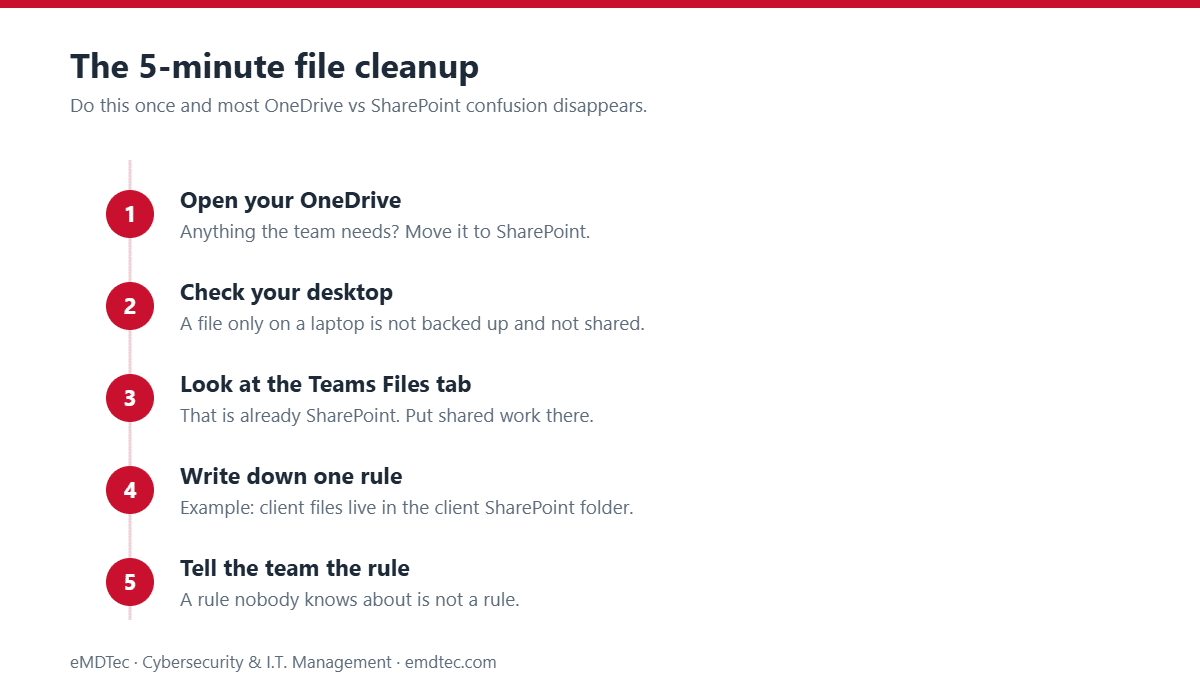
- Put shared work in SharePoint or Teams. Anything the team works on together belongs in a shared library. Keep it out of one person’s OneDrive, no matter how convenient that felt at the time.
- Keep OneDrive for your own files. Drafts and personal work are fine there. Just never let it become the only home for something the business depends on.
- Get files off local desktops. A file saved only on a laptop is not backed up, not shared, and gone if the device is. Move it into OneDrive or SharePoint. You can still work the way you always have, because the OneDrive app keeps a copy on the device for offline use and syncs your changes back automatically.
- Agree where things go. One shared rule, written down, such as “client files live in that client’s SharePoint folder,” prevents an enormous amount of confusion later.
- Use version history when something goes wrong. Before you rebuild a document from scratch, check the version history. The earlier copy is usually still sitting there.
What we see most often in New Jersey businesses
We get called in for something else entirely, and the OneDrive vs SharePoint mess turns up on the way. Three patterns come up again and again.
The one-person bottleneck
One long-serving employee has quietly become the filing system. Everything routes through their OneDrive because that is where it always went. Nobody minds until they are on holiday, off sick, or handing in notice. Moving that work into SharePoint costs an afternoon and removes a risk the business did not know it was carrying.
The shadow folder structure
There is an official SharePoint site nobody uses and a real folder structure living across three personal drives. This is usually a signal that the official structure did not match how people actually work. The fix is a conversation about workflow first, not a lecture about where to save things.
Permissions nobody has reviewed
Shared links handed out years ago, to people who have since left, for folders nobody remembers creating. Nothing has gone wrong yet, which is exactly why it never gets looked at. A permissions review is one of the cheapest security wins available to a small business, and it pairs naturally with sorting out the OneDrive vs SharePoint split.
Ready to sort your files out?
If your files are scattered and you are not sure what should sit where, we can map what you have, sort out the OneDrive vs SharePoint split, set up a straightforward structure in SharePoint, and move things into the right place. Files become easy to find, and they stay safe when people come and go.
It usually takes far less time than business owners expect. Book a free consultation and we will tell you honestly what is worth doing and what is not. Our cloud services and managed IT services teams handle this work for businesses across New Jersey every week.
Getting OneDrive vs SharePoint right without a big project
Nobody has a spare fortnight for a file migration, and you do not need one. The businesses that fix their OneDrive vs SharePoint problem for good tend to do it in small, boring steps rather than one heroic weekend.
Start with the files people ask about
Do not begin with the archive. Begin with the five or six folders your team asks each other about most often: the current client work, the live proposals, the templates everyone copies. Move those into SharePoint first. That handles the majority of the day-to-day friction, and it earns you the goodwill to finish the rest.
Keep the structure shallow
The deeper the folder tree, the faster people give up and save to the desktop instead. Two or three levels is usually plenty: a library per area of the business, folders by client or project inside it, and search to do the rest. SharePoint search is genuinely good, and it works far better than a filing system nobody can navigate.
Give it a fortnight before you judge it
Any change to where files live feels worse for about a week. People look in the old place out of habit. If you are still hearing complaints after two weeks, the structure is wrong and worth adjusting. If the complaints stop, it has landed.
Decide who owns it
Someone has to be allowed to say no when a new top-level folder gets proposed. That is usually an office manager or an operations lead rather than IT. Without that person, the OneDrive vs SharePoint problem you just solved reappears in a slightly different shape within a year.
What the OneDrive vs SharePoint split does not fix
Sorting out OneDrive vs SharePoint solves a real set of problems, and it is worth doing. It also gets oversold. Three things it will not do for you.
It is not a backup
This is the misunderstanding that costs businesses the most. Microsoft protects its own infrastructure, not your decisions. If someone deletes a folder and nobody notices for three months, or ransomware encrypts files that then sync happily up to the cloud, the recycle bin and version history may not stretch far enough to help.
Getting the OneDrive vs SharePoint split right makes recovery more likely. It does not make it certain. If losing a year of documents would genuinely hurt, you want a dedicated Microsoft 365 backup sitting behind all of this.
It does not clean up permissions on its own
Moving files into SharePoint puts them somewhere sensible. It does not tell you who could already see them. Old sharing links, guest accounts from a project that ended two years ago, and folders inherited from a site nobody remembers building all survive the move perfectly intact.
Plan a permissions review as a separate job. It is quick, and it is the step that turns a tidy file structure into an actually secure one.
It will not survive without a rule people follow
The most common outcome of a file cleanup is a beautiful structure that has drifted back into chaos within six months. Nobody is being difficult. People save things where saving is easiest, and if the shared library sits three clicks further away than the desktop, the desktop wins every time.
So keep the rule to one sentence, say it out loud when someone joins, and make the right place the easy place. That is the part of the OneDrive vs SharePoint question that is about people rather than software, and it decides whether any of the rest of it lasts.
OneDrive vs SharePoint: frequently asked questions
What is the difference between OneDrive and SharePoint in one line?
OneDrive is for your own work files. SharePoint is for files your team shares.
Where do files in a Teams channel get stored?
In SharePoint. Every team has a SharePoint site behind it, and the Files tab in a channel is a view into that site. Uploading a file to Teams is the same as putting it in SharePoint.
Should I keep work files on my computer’s desktop?
Try not to, for anything that matters. A file only on your desktop is not shared and not backed up, and it is gone if the device is lost or breaks. Save it to OneDrive or SharePoint instead, where it is protected and reachable.
What happens to files in someone’s OneDrive when they leave?
By default, Microsoft keeps a deleted user’s OneDrive for 30 days and gives their manager access, and that window can be extended if it is set up in advance. It is recoverable, but it is far easier if the shared work was in SharePoint to begin with.
Can I get back a file that was deleted or changed by mistake?
Usually, yes. OneDrive and SharePoint both keep a recycle bin and older versions of files, so you can restore a deleted file or roll back to an earlier version. If you cannot find it, your IT provider can dig deeper before the retention window closes.
Do I need to move everything at once?
No, and we would not recommend it. Start with the files the team touches most often, agree the rule for where new work goes, then move the rest as it comes up. A big-bang migration usually creates more confusion than it solves.
Is SharePoint overkill for a small team?
It rarely is. Even a three-person business benefits from files that belong to the business rather than to whoever created them. You are already paying for SharePoint inside Microsoft 365, so the only real cost is the hour it takes to set up sensibly.
Does the SharePoint vs OneDrive choice affect backups?
It affects how recoverable your files are, which is not the same as being backed up. Microsoft 365 keeps version history and a recycle bin, but those are limited and time-boxed. If your business could not survive losing a year of documents, talk to your IT provider about a dedicated Microsoft 365 backup on top of what Microsoft includes.
Sources and further reading
- Microsoft: Should I save files to OneDrive or SharePoint? — Microsoft’s own guidance on which to use.
- Microsoft: File storage in Microsoft Teams — how Teams files are stored in SharePoint.
- Microsoft: Set the OneDrive retention for deleted users — what happens to a leaver’s OneDrive and the 30-day default.
Featured image credit: Pixabay. This article has been republished with permission from The Technology Press.