

 Managed IT Services
The short version: Most IT problems do not appear out of nowhere. Backups quietly stop running, updates sit unfinished for weeks, and old staff accounts stay switched on for months. A monthly IT maintenance checklist catches all of that while it is still cheap to fix. Here are the six things to look at, and roughly how long each one takes.
Most owners only look at their IT when something has already gone wrong. A file will not open, a laptop will not start, or an invoice gets paid into a scammer’s account. Fixing it at that point always costs more than a monthly IT maintenance checklist would have.
Almost none of it happens without warning. The backup that failed when you finally needed it had been failing for weeks. The account a scammer used belonged to someone who left last year. A monthly IT maintenance checklist is usually enough to catch that kind of thing, and it takes about half an hour.
This is not a technical job. A monthly IT maintenance checklist is a business job that happens to involve technology, which is exactly why it tends to fall through the cracks.
Why a monthly IT maintenance checklist is worth the time
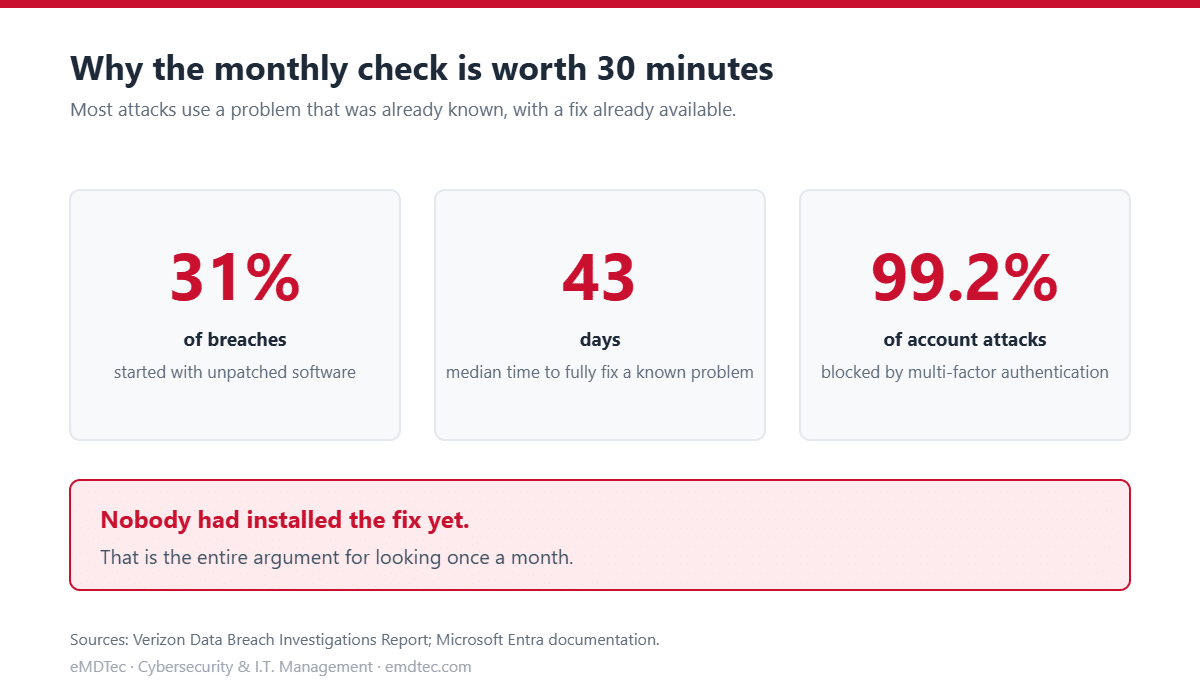
Verizon’s Data Breach Investigations Report found that 31% of breaches started with attackers exploiting software that had not been patched. That makes unpatched software the most common way in, ahead of stolen passwords. The same report found the median time to fully fix a known problem has risen to 43 days.
Read that again, because it is the whole argument. Most attacks use a problem that was already known, with a fix that was already available. Nobody had installed it yet.
A monthly IT maintenance checklist will not close every gap. What it does is shrink the window between something going wrong quietly and somebody noticing, from months down to weeks. In our experience that single change prevents more incidents than any product you could buy.
The monthly IT maintenance checklist: 6 things to check
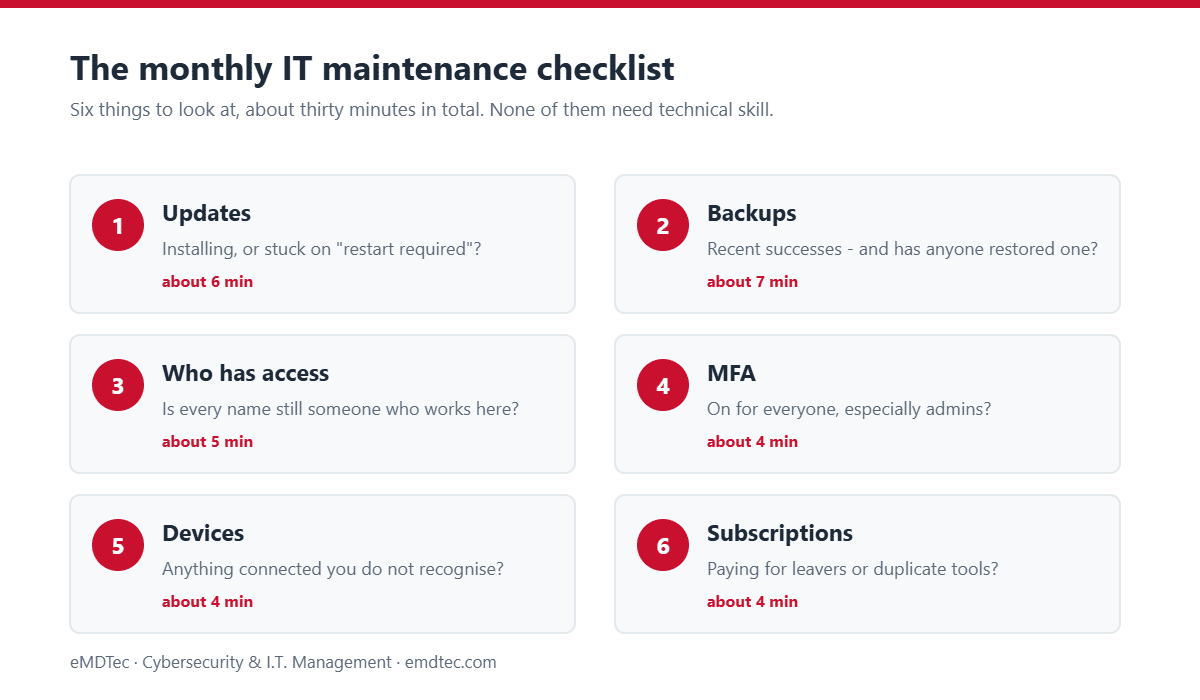
Work through the monthly IT maintenance checklist in order. Do not stop to fix anything as you go, because that is what turns thirty minutes into a lost afternoon. Write down what you find and deal with it afterwards.
1. Updates
Check whether Windows updates are actually installing on your computers, or sitting at “restart required” week after week. Do the same for phones and for the software you use most, like your browser and your accounting package.
If people keep clicking “remind me later,” that is the thing to fix, not the individual machine. A restart nobody ever performs is a patch nobody ever gets.
2. Backups
Open your backup tool and look at the last few runs. You want a row of recent successes, not a list of errors nobody has opened in a month.
Then ask the harder question: when did anyone last restore a file from it? If the answer is never, you do not have a backup. You have an assumption. Restoring one small file takes minutes and is the only way to know. If you are being asked about this by an insurer, our post on what immutable backup means on your cyber insurance form covers the language they use.
3. Who has access
Pull up the list of user accounts in Microsoft 365 or Google Workspace and read every name. Each one should be somebody who still works for you.
Look for people who left, contractors who finished months ago, and shared logins like “office” or “admin” that several people use. Switch off anything you do not need. This is the check that most often turns something up, and it is usually a symptom of offboarding that never quite finished. We wrote about that pattern in why bad onboarding is the real cause of messy offboarding.
4. Multi-factor authentication
Check that MFA is switched on, and that it is on for everyone rather than just the people who set it up first. Pay closest attention to admin accounts and anyone who handles money.
Microsoft’s research shows MFA blocks more than 99.2% of account compromise attacks, which makes the handful of accounts still missing it the most valuable thirty seconds in this entire list. Not all MFA is equal either, and phishing-resistant MFA is worth understanding before you assume you are covered.
5. Devices
Look at what is connected to your systems. If there is a laptop or phone you do not recognise, find out whose it is before you do anything else.
Then confirm that laptops are encrypted and that any phone carrying company email has a passcode or fingerprint lock. A lost unencrypted laptop is a reportable incident. A lost encrypted one is an inconvenience and a hardware bill.
6. Subscriptions and licences
Open your billing page and actually read what you are paying for. Businesses routinely pay for licences belonging to people who left, or for two tools that do the same job because different departments each bought one.
It is also how you find software somebody signed up for without telling anyone, which is a security question as much as a cost one. Our zombie SaaS audit walks through finding the apps former employees can still reach.
Where the thirty minutes actually goes
Once you know where everything lives, the timings for a monthly IT maintenance checklist settle down to something like this. The first run always takes longer, because half the job is finding the right screens.
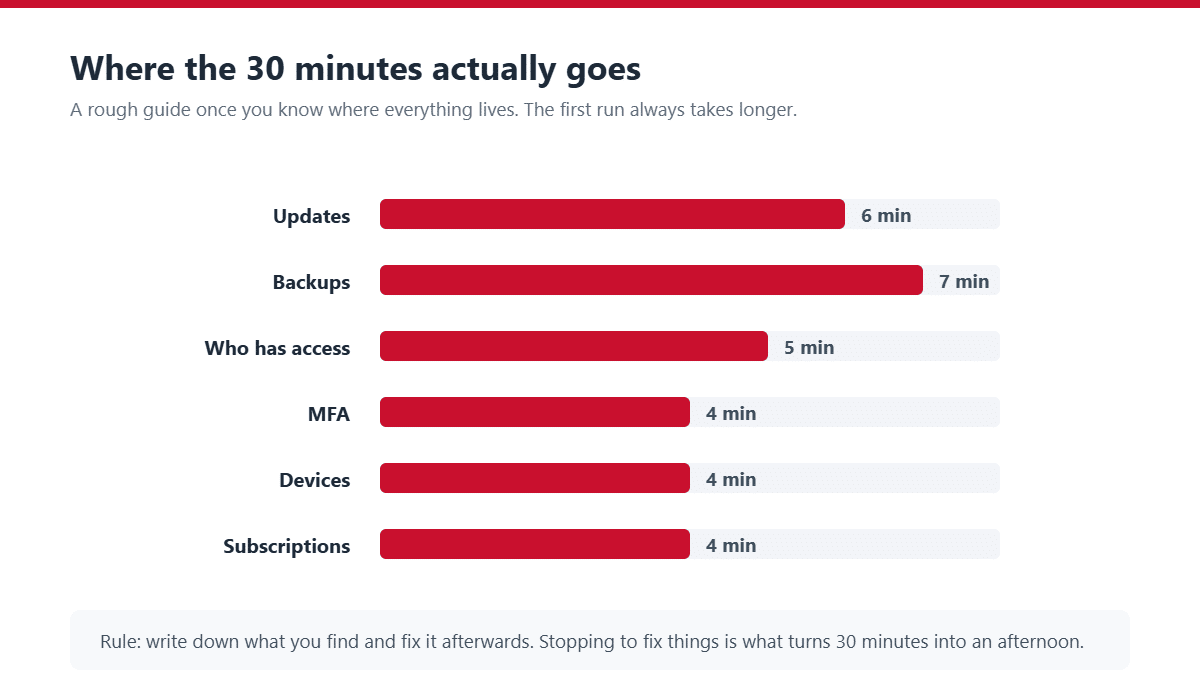
Expect the first month to take an hour or more. Expect the second to take forty minutes. By the third it is a genuine half hour, because you have bookmarks and you know what normal looks like.
Make the monthly IT check a routine
A checklist nobody runs is worth nothing. Three things make the difference between a monthly IT check that becomes a habit and one that stays a good intention.
Pick a fixed day and one owner
Put it in the calendar on a specific day, like the first Monday of the month, and give it to the same person every time. That is you, or whoever handles the admin side of the business. Rotating it between people guarantees it gets skipped.
Keep a running note
Write down what you checked and what you found, in the same place each month. A shared document is fine. The point is not record keeping for its own sake, it is being able to look back.
Watch for the same thing twice
After a few months you will see whether a problem keeps coming back. One machine that fails updates every single month is not a monthly task, it is a fault. Clearing it each time hides the actual issue, and the actual issue is usually cheap to fix once somebody looks properly.
Who fixes what
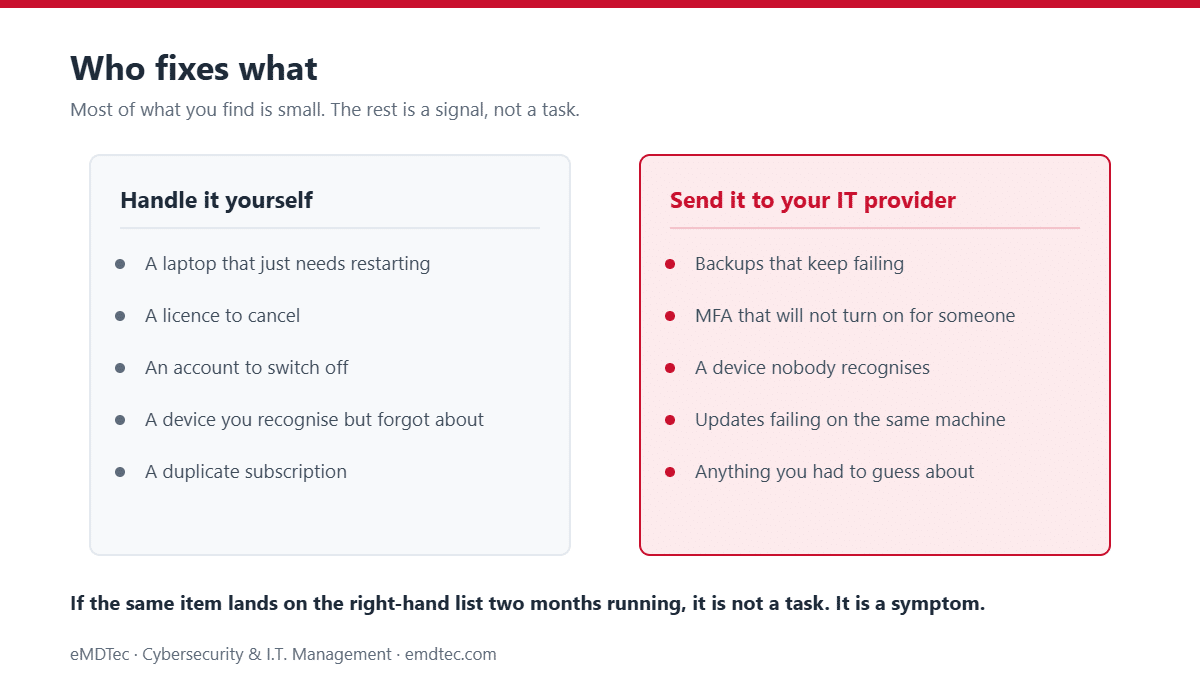
Most of what a monthly IT maintenance checklist turns up is small and you can handle it yourself. The rest is a signal rather than a task.
Handle these yourself
A laptop that needs restarting, a licence to cancel, an account to switch off, a subscription nobody uses. None of these need a ticket. Doing them yourself also keeps you close enough to the detail to notice when something changes.
Send these to your IT provider
Backups that keep failing, MFA that will not turn on for someone, a device nobody recognises, or updates that fail on the same machine every month. Those usually mean something structural sits behind them, and clearing the symptom will not help.
If you are not sure which list something belongs on, send it. A two-minute answer from your provider beats a wrong guess, and any provider worth having would rather hear about it early.
Adapting the monthly IT maintenance checklist to your business
The six items in the monthly IT maintenance checklist suit almost everyone. What changes is how much weight each one carries, and that depends on what your business would actually lose on a bad day.
Solo operators and very small teams
With two or three people, the access review takes about ninety seconds and the subscription check becomes the most valuable item on the list. Small teams accumulate tools quickly and cancel almost nothing. Run the same monthly IT maintenance checklist, just expect the time to land closer to fifteen minutes.
Regulated practices
If you handle patient records, client financial data, or privileged legal files, the access and MFA items stop being housekeeping and start being evidence. Keep the notes, because a client questionnaire or an insurer will eventually ask how often you review access, and “monthly, and here is the log” is a far better answer than a shrug.
Firms in those sectors usually need more than this list on its own. Our pages on IT support for accounting professionals and IT support for law firms cover the compliance side that a monthly IT maintenance checklist cannot reach by itself.
Multiple locations or a lot of contractors
The device check is where your risk concentrates. Kit gets bought locally, contractors connect their own laptops, and nobody has a full list. Run the device item first each month rather than fifth, because by item five attention has usually gone.
Businesses with no IT provider at all
If nobody is monitoring in the background, this monthly IT check is the only thing standing between a small problem and an expensive one. That is a real argument for running it religiously, and an honest argument for eventually getting help, because a monthly glance was never designed to carry that much weight on its own.
What a monthly IT maintenance checklist does not do
A monthly IT maintenance checklist is genuinely useful, and it also gets oversold. Three things it will not cover.
It is not monitoring
A managed IT provider runs tools watching your systems continuously and flagging things you would never spot from a monthly glance: a failing drive, an unusual login from another country, a process quietly consuming a server. The checklist looks once a month. Monitoring never stops looking.
The two are complements, not alternatives. The check covers what monitoring cannot know. You know who left, which subscriptions you approved, and whose laptop is whose. No tool can tell you that.
It is not a security assessment
Going through six screens confirms the obvious things are in place. It does not test whether your firewall rules make sense, whether your permissions have drifted, or whether an attacker could move sideways once inside. That is a security risk assessment, and it is a different piece of work with a different depth.
It is not a backup test
Restoring one file proves the backup produces files. It does not prove you could rebuild the business after a serious incident. A real recovery test restores a full system and times how long it takes, because the honest answer to “how long would we be down” is usually longer than anyone assumes.
What we usually find on the first run
When we sit down with a new client and work through the monthly IT maintenance checklist together, the same three things come up more often than anything else.
The account that never got switched off
Somebody left eight months ago and their login still works. Nobody was careless. Offboarding was a conversation between an owner and a manager, and the IT half of it never got written down anywhere. It is the single most common finding, and the quickest to fix.
The backup that stopped after a change
A server got replaced, a folder got renamed, or a licence lapsed, and the backup job has been erroring ever since. The alerts were going to an inbox nobody reads. Everyone believed they were covered, which is worse than knowing they were not.
The MFA gap nobody knew about
MFA is switched on, and the report says ninety percent coverage. The missing ten percent is usually a shared mailbox, a service account, or the one person who found it annoying and got an exemption in 2023 that nobody revisited.
None of these are signs of a badly run business. They are what happens when the people who know the business are busy running it, which is exactly the gap a monthly IT maintenance checklist is designed to close.
Would you rather not do this yourself?
Plenty of owners run this monthly IT maintenance checklist themselves and never need anything more. That is a perfectly good outcome, and if this post is all you ever take from us, we are happy.
If you would rather it just happened, that is what managed IT services are for. We run the checks, monitor the things a monthly glance cannot catch, and send you a summary so you still know what is going on in your own business. Book a free consultation and we will walk through your first check together, so you can see what turns up before deciding anything.
Monthly IT maintenance checklist: frequently asked questions
How often should a small business check its IT?
Once a month is enough for this list. Backups are worth a quicker look more often if losing a day of work would seriously hurt, because that is the item most likely to fail quietly and the one you only discover at the worst possible moment.
Who should do the monthly IT check?
You, or whoever runs the admin side of the business. Most of the list needs no technical skill at all. It needs somebody who knows who works here and what the business pays for, which is not the same person as your most technical employee.
What if I do not know where to find any of this?
Ask your IT provider to walk you through it once and write down where each thing lives. Half an hour of screen sharing turns this from intimidating into routine. Many providers will also send you a monthly summary covering most of the list.
Is this not my IT provider’s job?
They handle the monitoring, the patching, and the fixing. The monthly IT maintenance checklist covers the part that depends on knowing your business, like who left last month or which subscription nobody approved. No provider can see those without you.
What if I find something serious?
Do not try to investigate it yourself. If you find an account you cannot explain, a device nobody recognises, or a login from somewhere odd, call your IT provider before you change anything. Poking at it can destroy the evidence needed to work out what actually happened.
How long before this stops finding things?
It never entirely stops, and that is the point. Once the backlog is cleared the findings get smaller, which is when the check has done its job. A month with nothing to report is a good month, not a wasted one.
Sources and further reading
- Verizon: Data Breach Investigations Report — the source for the 31% and 43-day figures above.
- Microsoft: Mandatory multi-factor authentication — the 99.2% figure and Microsoft’s MFA requirements.
Featured image credit: Unsplash. This article has been republished with permission from The Technology Press.